Register multiple devices for push notifications
This document explains how to register multiple push devices in WSO2 Identity Server. Multiple device support lets a user keep several devices enrolled at the same time for push notification-based use cases — instead of being limited to a single device.
Prerequisites
- A push notification provider configured in WSO2 Identity Server.
- At least two mobile devices with a push authenticator app installed. To build one, see Build your own push authenticator app.
- A user account with a push device already registered. If your users register devices through the My Account portal, see Enroll a push notification device.
How multi-device push works
Multiple device support affects two distinct scenarios:
- Registration. A user can enroll more than one device, up to a configured limit. Devices can be added through the My Account portal, through your own application using the REST API, or during sign-in with progressive enrollment. When the limit is reached, further registration attempts are rejected.
- Authentication. When the user reaches the push authentication step, WSO2 Identity Server sends the notification to every registered device. The first device that approves or denies the request decides the outcome; WSO2 Identity Server rejects responses that arrive later from other devices, as well as responses from a device that was not notified.
Step 1: Enable multiple device registration
-
On the WSO2 Identity Server Console, go to Connections and select Push Notification.
-
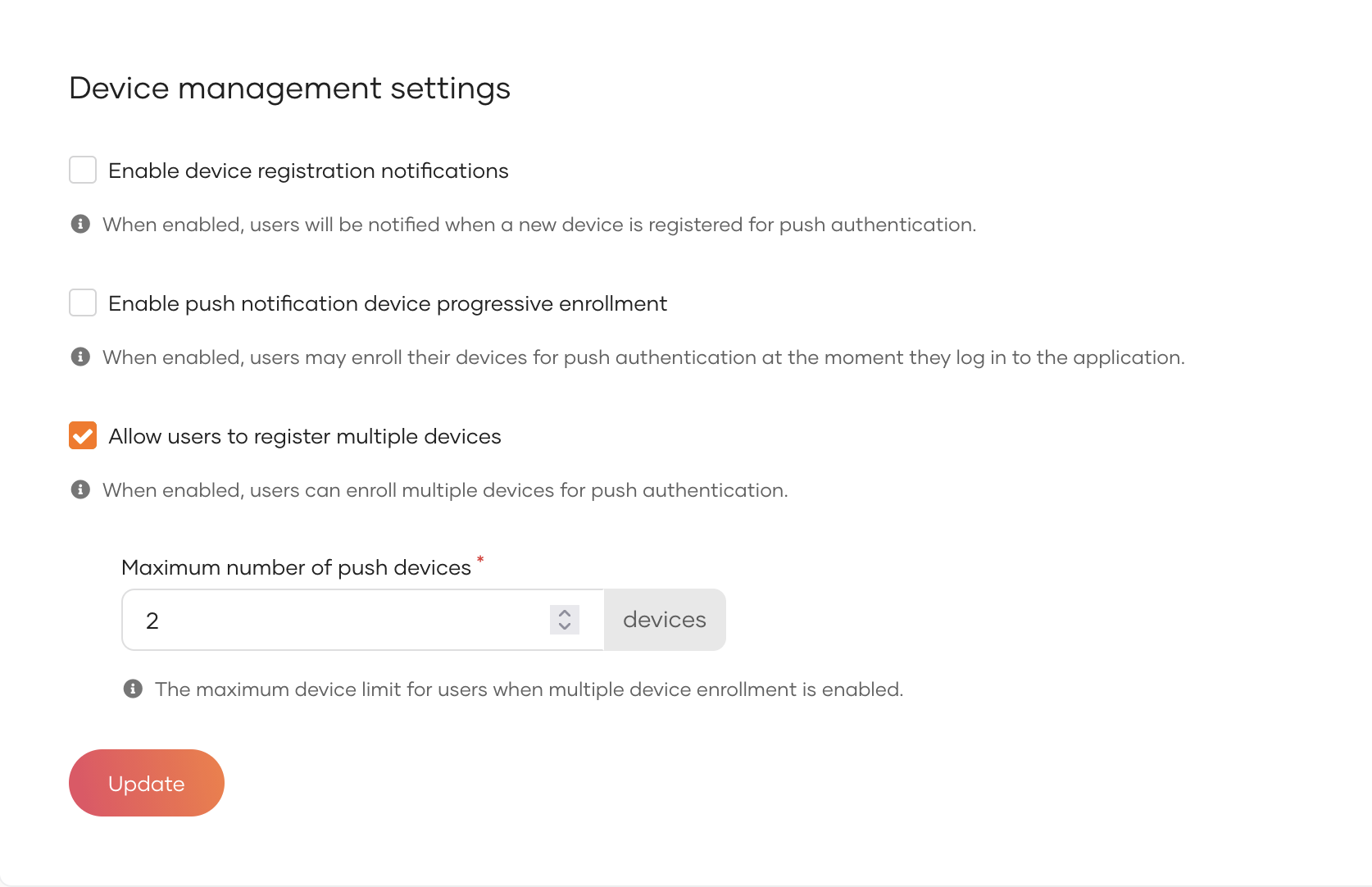
Go to the Settings tab and scroll to the Device management settings section.
-
Select Allow users to register multiple devices.
-
In Maximum number of push devices, enter the number of devices a user can register. The value must be at least 2.
-
Click Update.
Note
The max_device_limit_per_user server configuration limits the maximum value you can set here (default: 10). To change the upper bound, add the following to the <IS_HOME>/repository/conf/deployment.toml file and restart the server:
| Field | Description |
|---|---|
Allow users to register multiple devices |
When enabled, users can enroll multiple devices for push authentication. |
Maximum number of push devices |
The maximum number of devices a user can keep registered at the same time. |
Note
When you clear Allow users to register multiple devices, the device limit returns to one. Devices that users have already registered are not removed. Users with more devices than the new limit cannot register further devices until they remove the extra ones.
Step 2: Register another device
Once multiple device registration is enabled, a user can enroll additional devices up to the configured limit. A device can be registered in any of the following ways:
- The My Account portal - the self-service portal that ships with WSO2 Identity Server.
- Your own application - an application that registers devices on behalf of the signed-in user through the Push Notification Device Management REST API.
- The login flow - if you enable progressive enrollment for multiple devices, as described in Step 3.
Regardless of the method, the registration sequence is the same: the user requests the registration data, scans the QR code with the push authenticator app, and the app completes the registration. WSO2 Identity Server accepts the new device as long as the user is below the configured limit.
To register a device through the My Account portal:
-
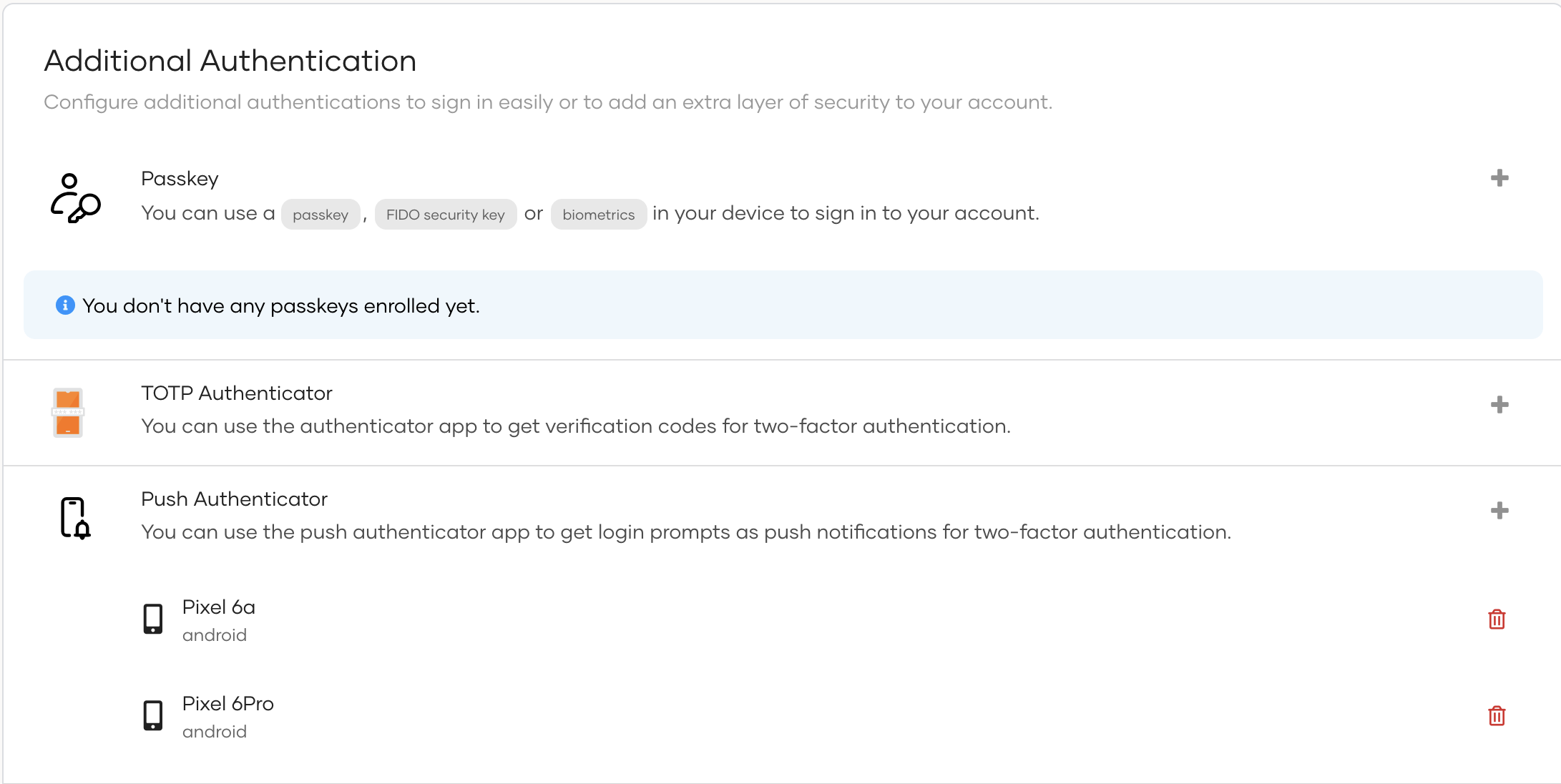
In the user's My Account portal, go to Security > Additional Authentication.
-
Click the + icon next to Push Authenticator.
-
Scan the QR code with the push authenticator app on the new device.
-
Click Verify to confirm the registration.
The new device appears in the Push Authenticator section along with the devices that are already registered.
Note
The device limit is enforced by the server, not by the portal. If you build your own registration experience, a registration request beyond the limit is rejected with an error, so handle that response in your application. To register another device, the user must first remove one of the existing devices.
Step 3: Allow users to register additional devices during sign-in
WSO2 Identity Server already supports push notification device progressive enrollment, which lets a user register a device while signing in, instead of registering it beforehand. However, that applies only to a user who has no device registered yet. A user who already has a device goes straight to the push notification page and has no way to add another device from there.
Progressive enrollment for multiple devices extends this to users who already have a device. With the option enabled, the push notification page also offers to register another device, so users can add another one without leaving the login flow.
Warning
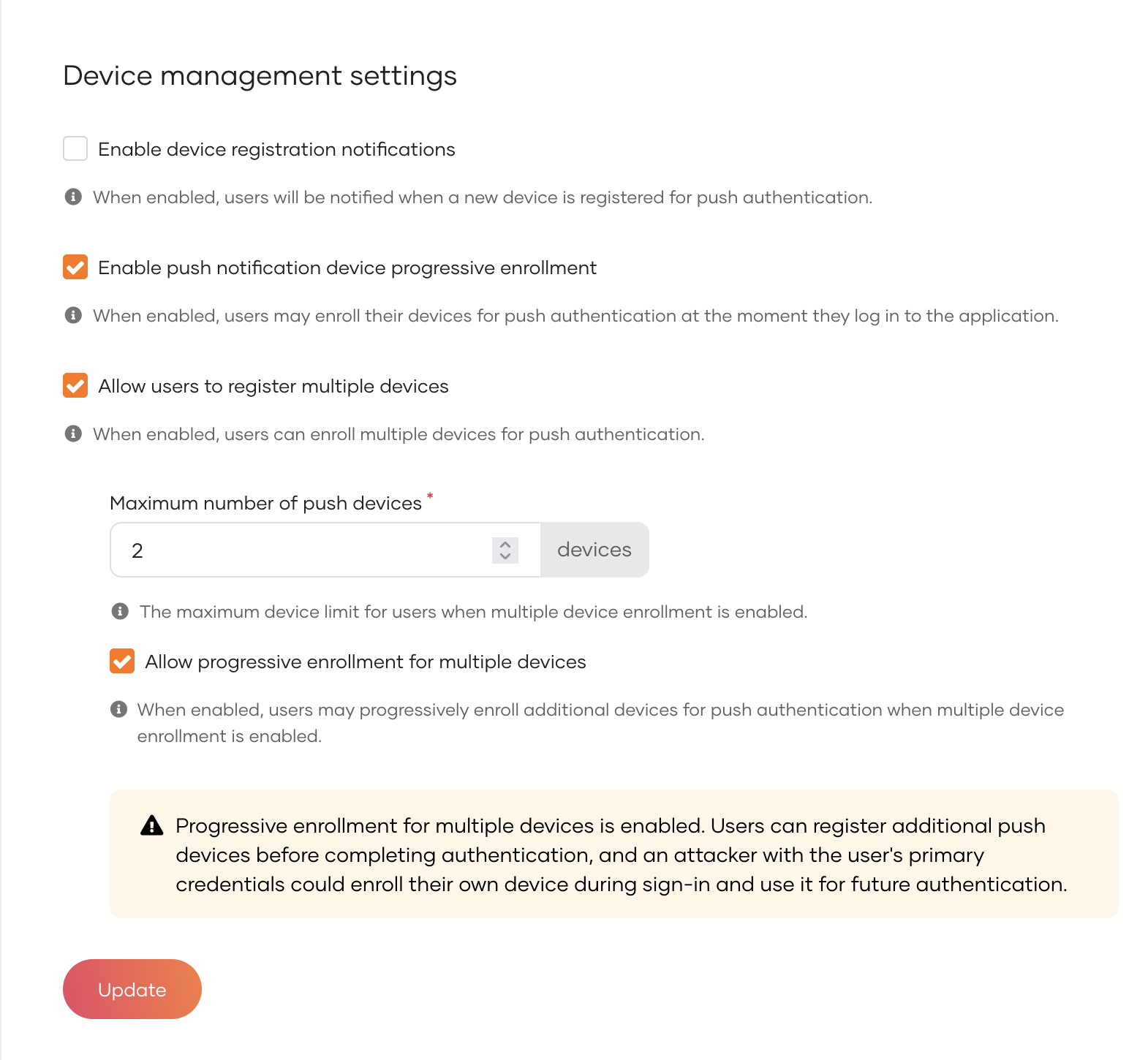
When this option is enabled, anyone who gets past the earlier authentication step — for example, someone who has the user's password — can register their own device during sign-in and use it to complete push authentication afterward. Enable this option only if your use case requires it.
-
On the WSO2 Identity Server Console, go to Connections and select Push Notification.
-
Go to the Settings tab and scroll to the Device management settings section.
-
Select Enable push notification device progressive enrollment.
-
Make sure Allow users to register multiple devices is also selected.
Allow progressive enrollment for multiple devices appears only when both of these options are enabled.
-
Select Allow progressive enrollment for multiple devices.
-
Click Update.
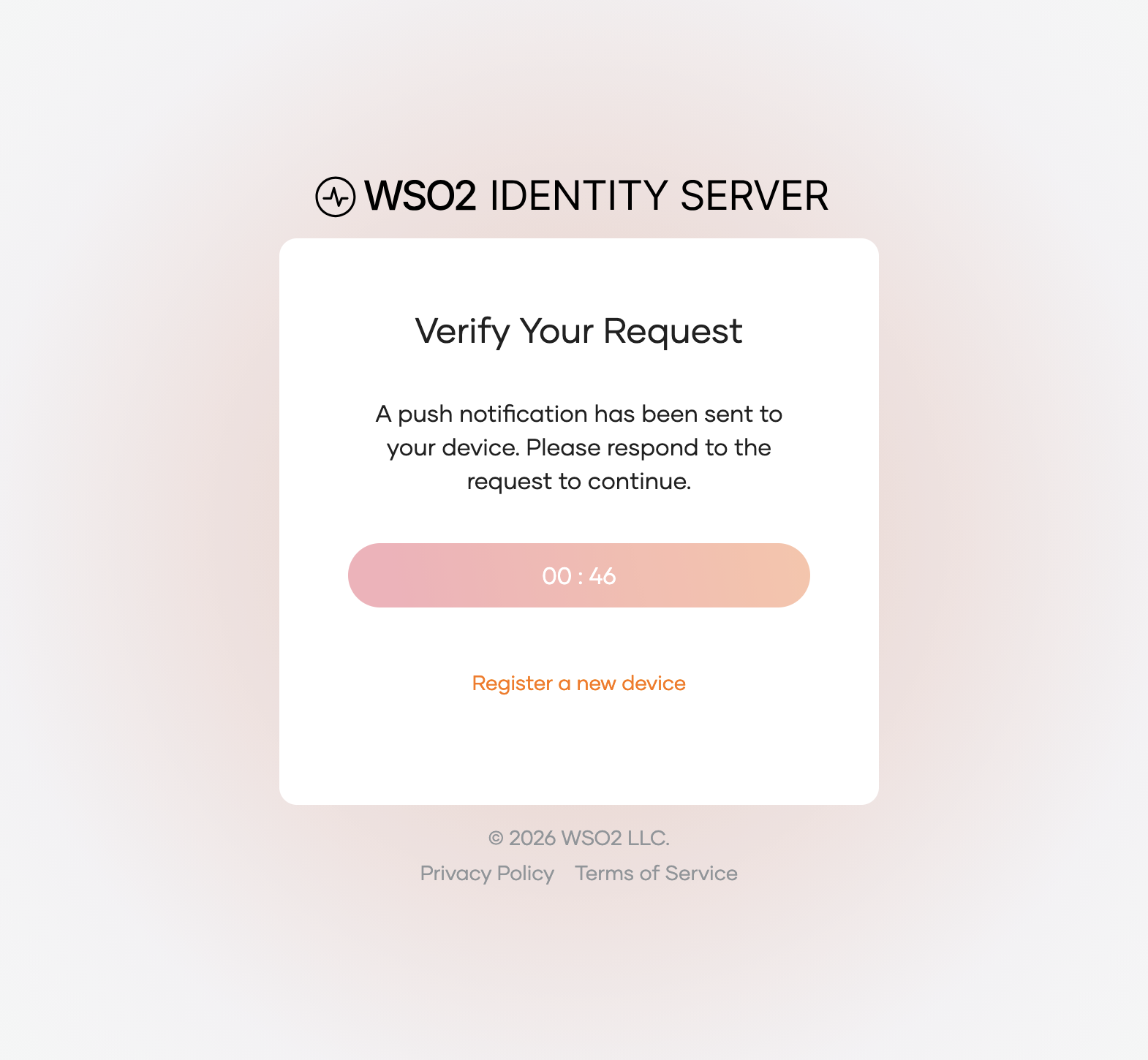
Once enabled, a user who already has a registered device sees a Register a new device button on the push notification page during sign-in. The button takes the user to the QR code page to register a new device. To return to the pending authentication request without registering, click on the Cancel Registration button.
Note
Allow progressive enrollment for multiple devices is available only when both Enable push notification device progressive enrollment and Allow users to register multiple devices are enabled. Turning off either option also turns off this setting.
The two settings cover different users: Enable push notification device progressive enrollment covers users with no device, and Allow progressive enrollment for multiple devices covers users who already have one.
Step 4: Notify users when a new device is registered
Because users can now keep more than one device, it is useful to tell them whenever a new device is added to their account.
-
On the WSO2 Identity Server Console, go to Connections and select Push Notification.
-
Go to the Settings tab and scroll to the Device management settings section.
-
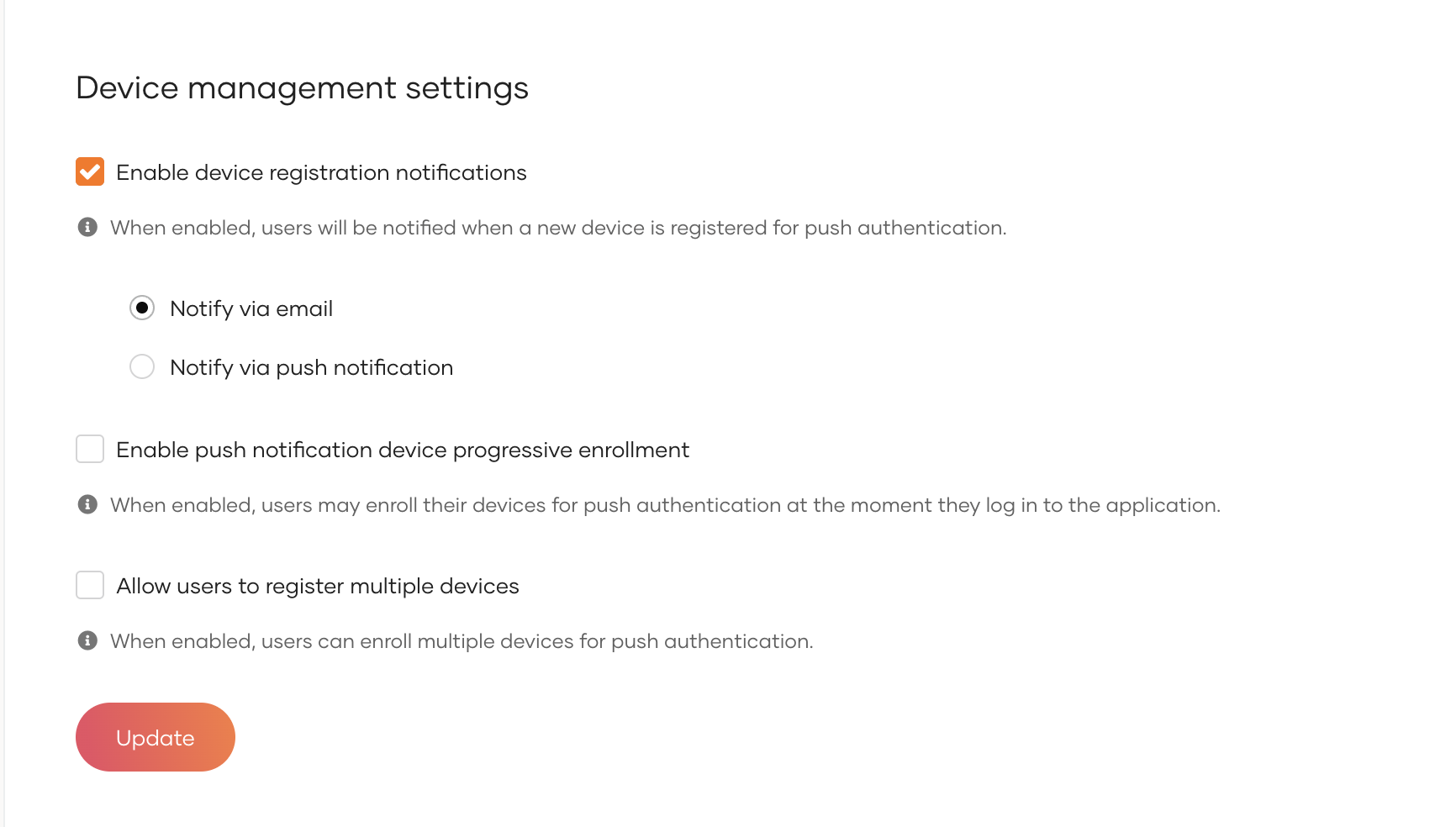
Select Enable device registration notifications.
-
Select the delivery channel:
- Notify via email - sends an email to the user. This is the default channel.
- Notify via push notification - sends a push notification to the devices the user has already registered.
-
Click Update.
The email notification uses the Push Device Registration email template. To customize it, go to Email Templates on the Console. The notification includes the device name, the device model, the registration time, and the IP address of the registration request.
Note
The registration email shows a support contact based on your organization's Contact Email. Set it under Branding so the notification gives users a valid address to reach out to. See Configure UI branding.
Step 5: Test multi-device authentication
-
Register two devices for a user, as described in Step 2.
-
Access the application and sign in with the user's username and password.
-
Observe that both devices receive the push notification.
-
Approve the request from one device.
The user is signed in to the application. The request on the second device is no longer valid.
Troubleshoot
| Symptom | Cause |
|---|---|
The user sees the error You have reached the maximum number of registered devices. Remove an existing device to enroll a new one. |
The user already has the maximum number of devices registered. The user must remove an existing device before registering another one. |
| A registration request is rejected although multiple device registration is enabled. | The user has reached the configured device limit, or Allow users to register multiple devices is not enabled for the organization. In the My Account portal, this shows as a disabled + icon. |