Add FranceConnect Login
FranceConnect is a digital authentication solution provided by the French government. It allows users to log in to various online services using their FranceConnect credentials. This guide will help you set up FranceConnect login in WSO2 Identity Server.
Register WSO2 Identity Server on FranceConnect
- Log in to the FranceConnect Portal.
- You will get the Client ID and Client Secret from the FranceConnect application.
- Enter the following as the Redirect URL:
- Authorization callback URL
Register the FranceConnect Login
Now, let's register the FranceConnect in WSO2 Identity Server.
- On the WSO2 Identity Server Console, go to Connections.
- Click New Connections and select Standard-based Idp.
- Click Create.
- Enter a unique name for your FranceConnect connection.
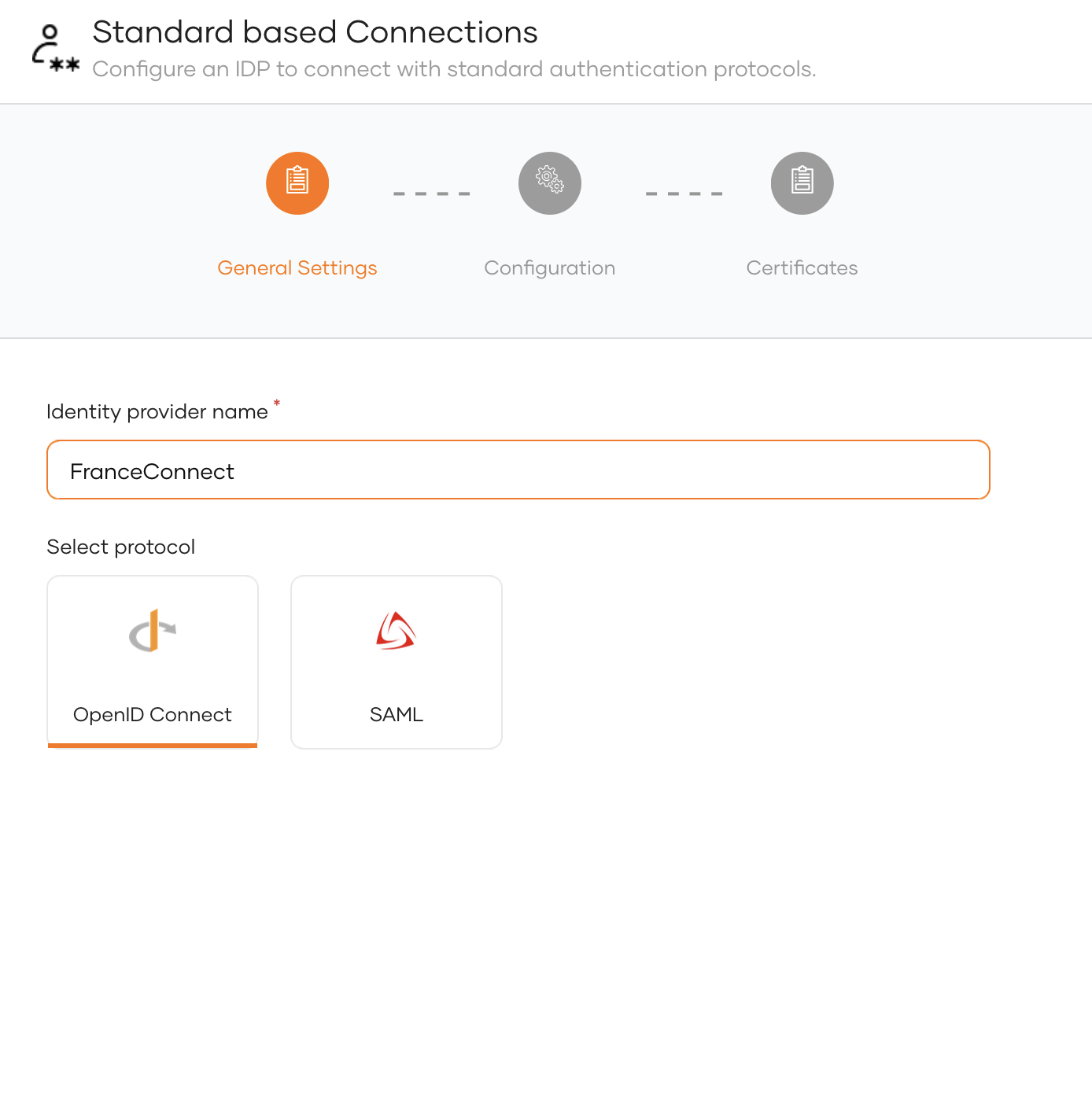
-
Enter the following details and click Finish:
Parameter Description Client ID The client ID obtained from FranceConnect. Client secret The client secret obtained from FranceConnect. Authorised redirect URL Provide the Authorised redirect URL of your FranceConnect connection. For example https://app.franceconnect.gouv.fr/api/v1/authorize.Token Endpoint URL Provide the Token endpoint URL of your FranceConnect connection. For example https://app.franceconnect.gouv.fr/api/v1/token.
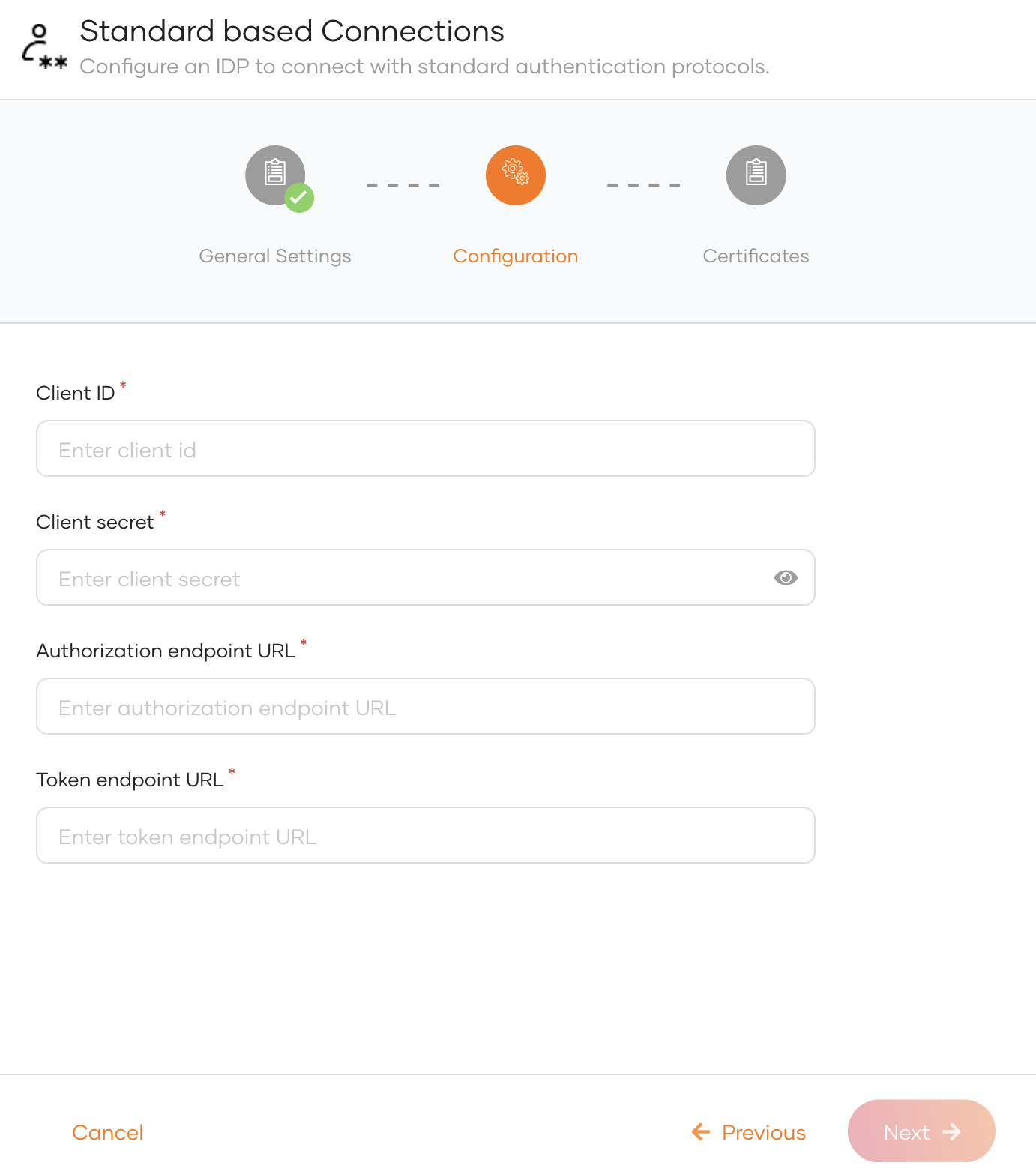 6. Click Next
7. You can enter JWKS endpoint URL of France Connect or upload the public certificate. This step is not mandatory while creating the connection.
8. Click Finish.JWKS endpoint URL Provide the JWKS endpoint URL of your FranceConnect organization. For example https://app.franceconnect.gouv.fr/api/v1/jwks.
Enable FranceConnect login
Before you begin
You need to register an application with WSO2 Identity Server. You can register your own application or use one of the sample applications provided.
- On the WSO2 Identity Server Console, go to Applications.
-
Select your application, go to the Login Flow tab and add FranceConnect login from your preferred editor:
-
Click Add Sign In Option to add a new authenticator to the first step.
-
Select the FranceConnect connection.
-
Click Confirm to add login with FranceConnect to the sign-in flow.
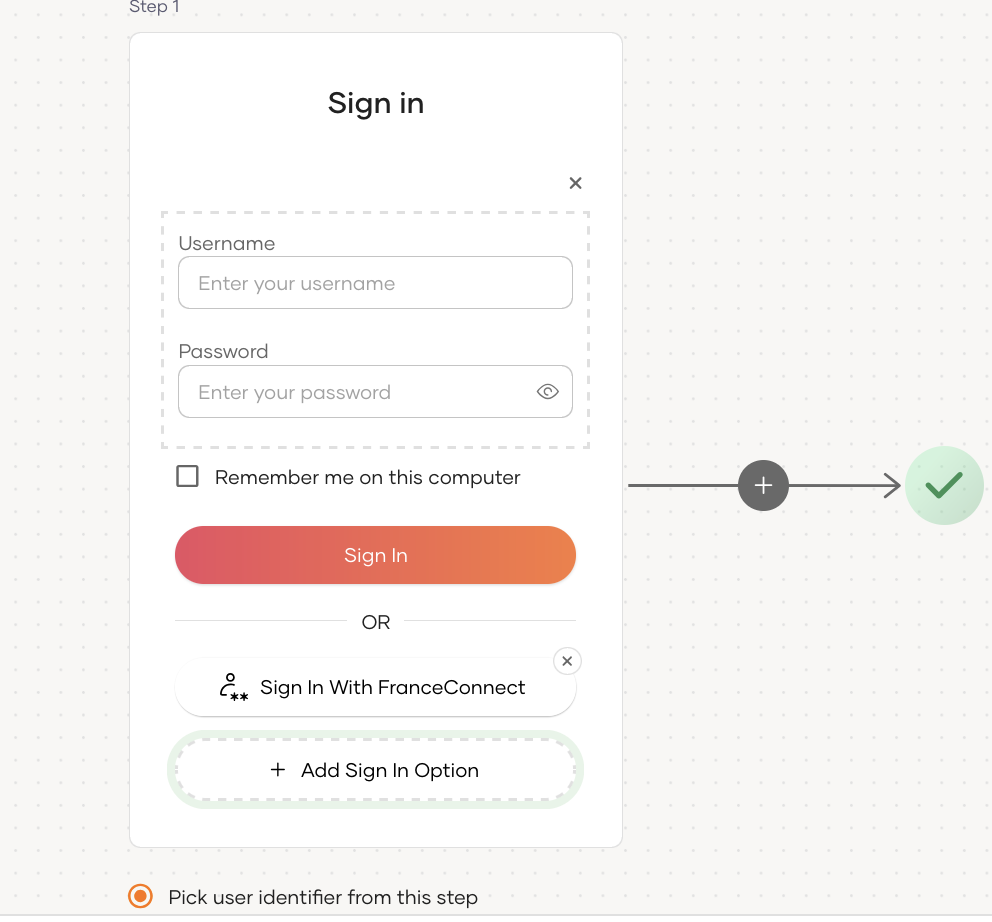
Recommendations
It is recommended to add your social and enterprise connections to the first authentication step as they are used for identifying the user.
-
-
Click Update to save your changes.
Try it out
Follow the steps given below.
-
Access the application URL.
-
Click Login to open the WSO2 Identity Server login page.
-
On the WSO2 Identity Server login page, Sign in with FranceConnect.
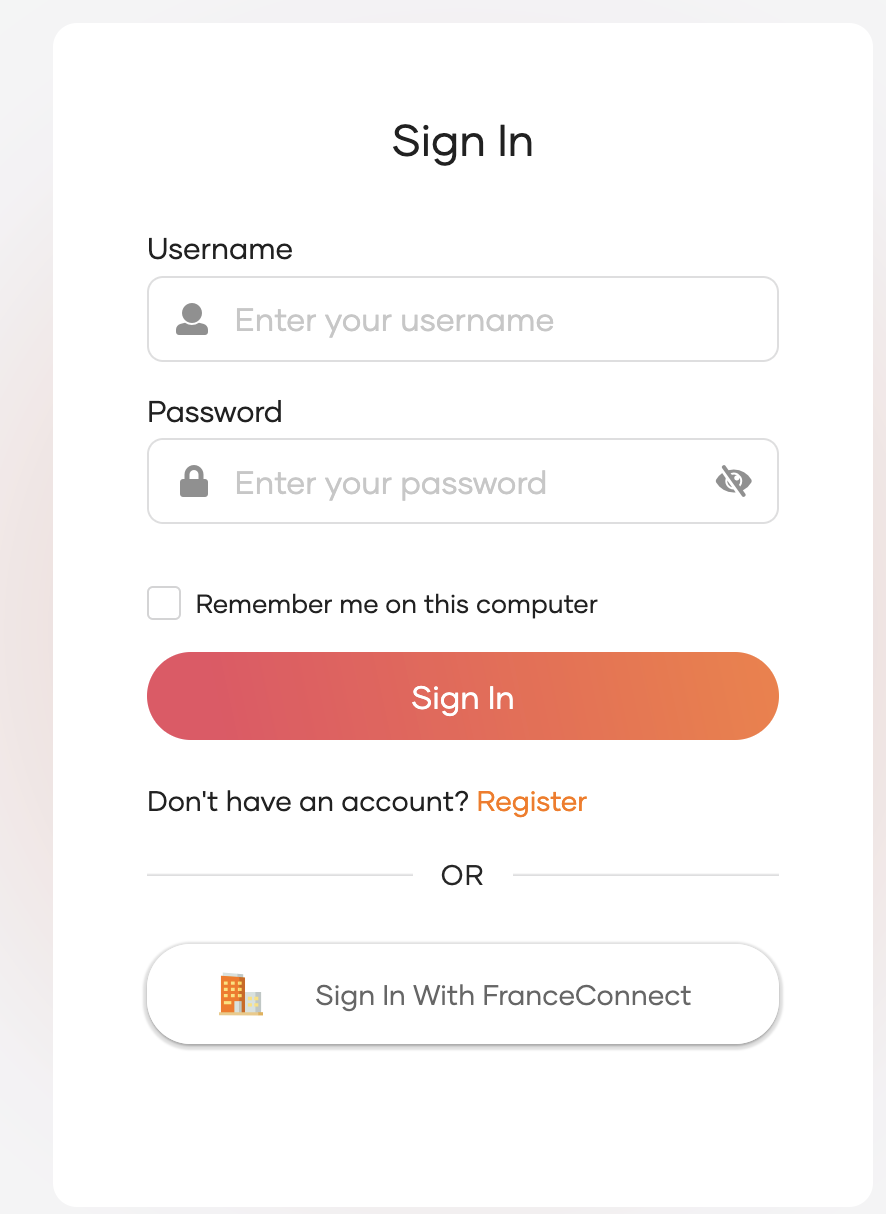
-
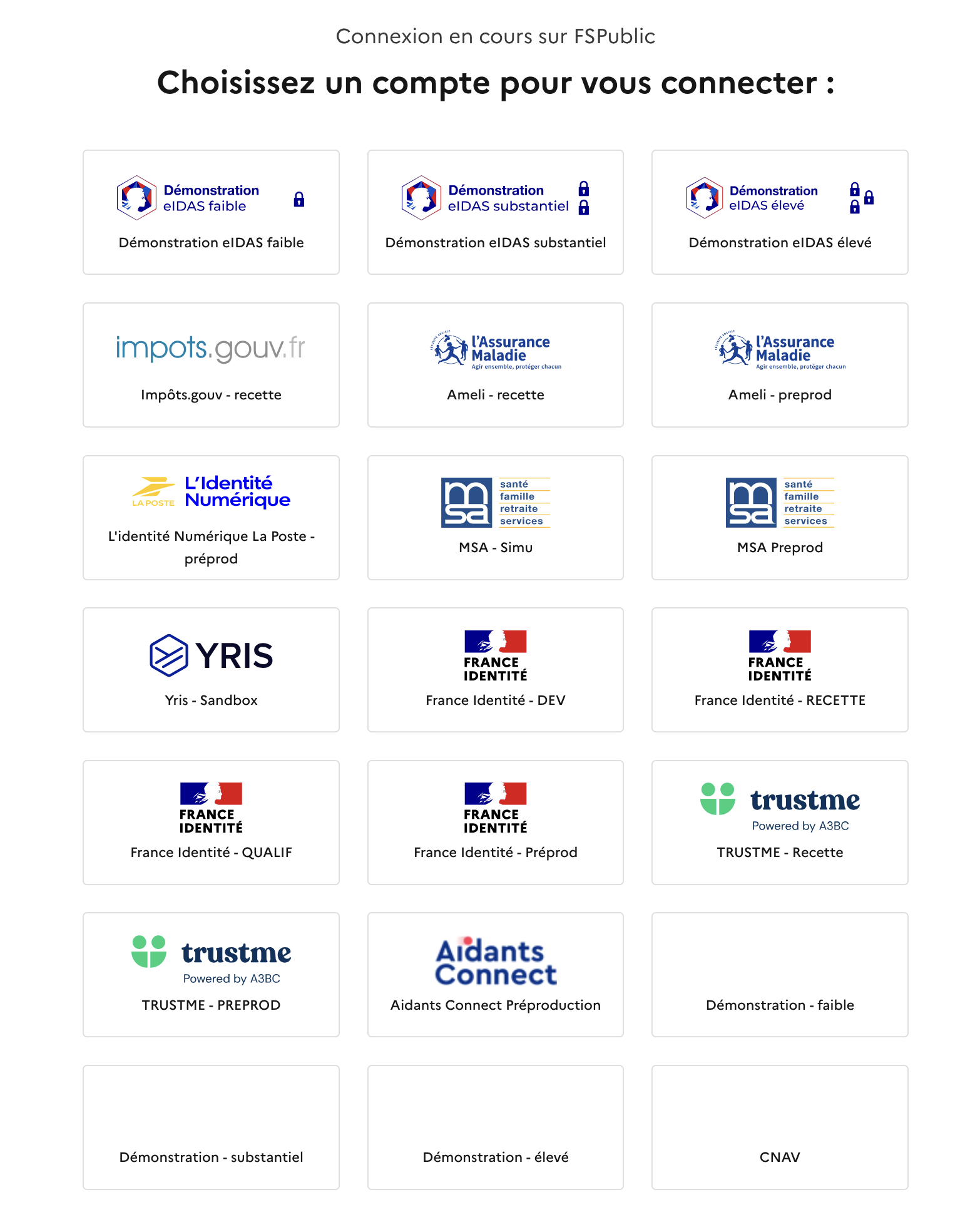
Log in to FranceConnect with an existing eID.
Configure connection
To learn more about other configurations available for the connection, refer to the add federated login documentation.