Register an application in WSO2 Identity Server
2 min
First unless you already have done that, you need to register your application as a Traditional Web Application.
- Download and setup WSO2 Identity Server
- Sign in to WSO2 Identity Server console and navigate to Applications > New Application.
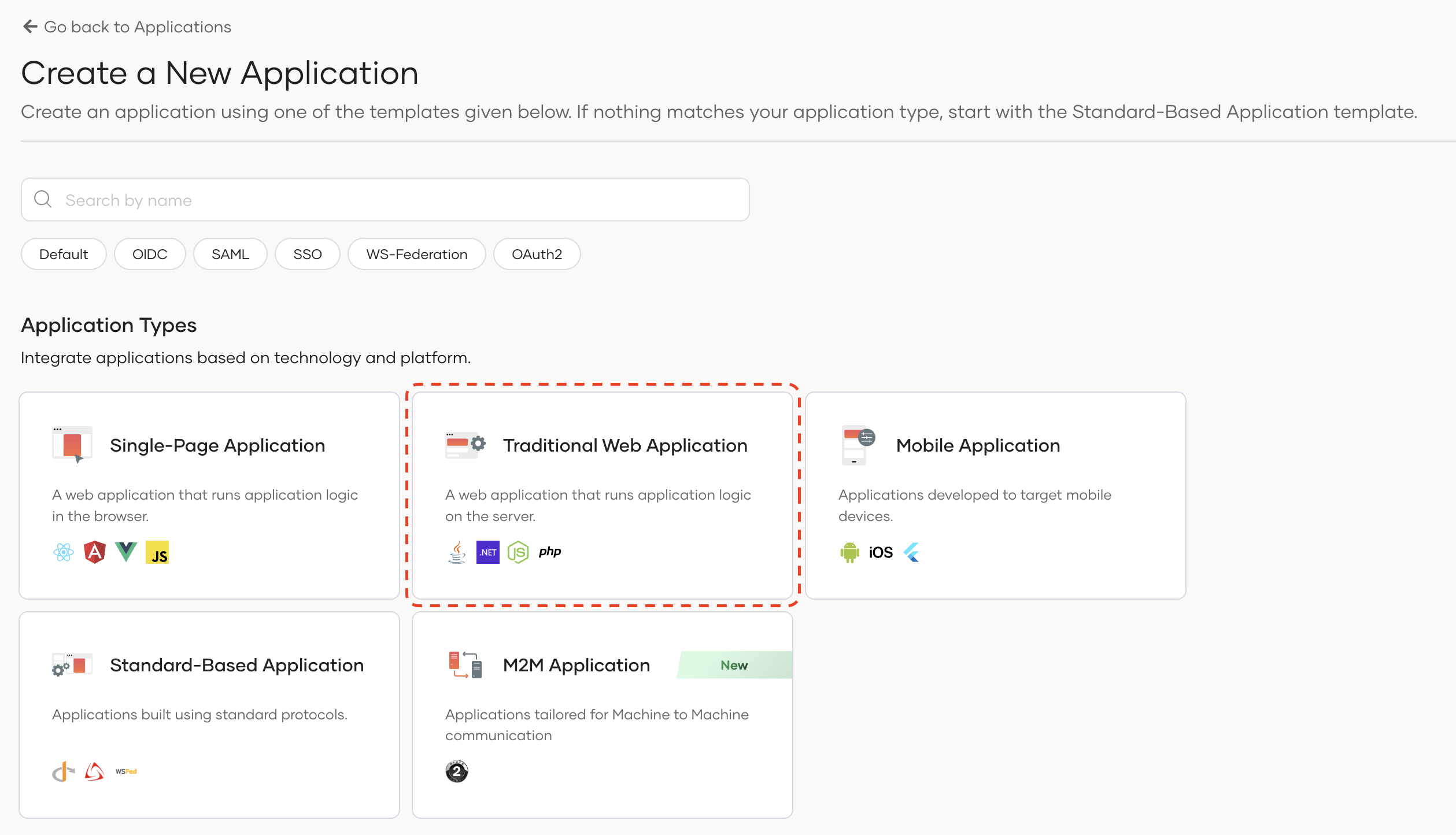
- Select Traditional Web Application (Make sure that the protocol remains set to OpenID Connect (OIDC))
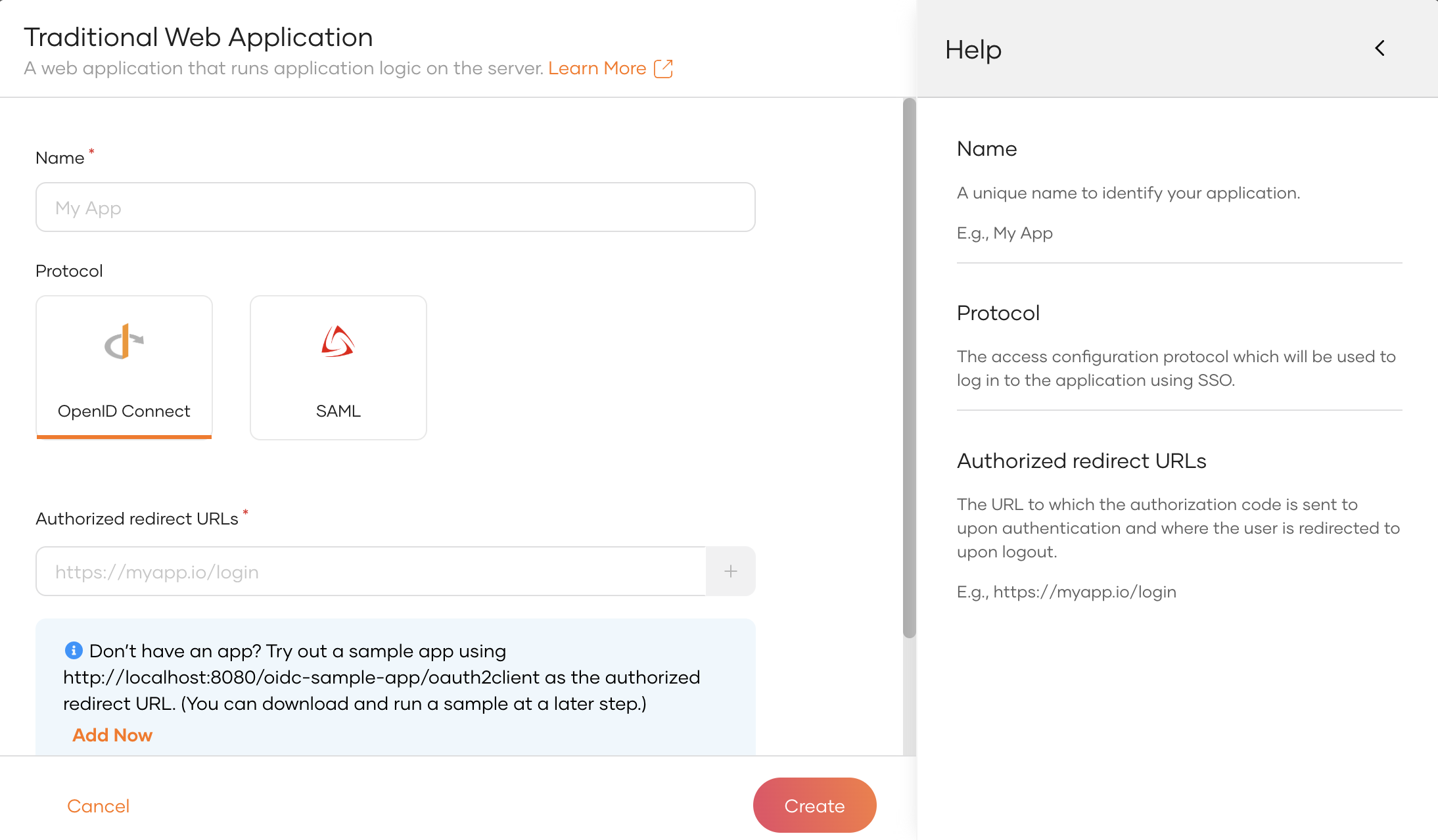
Next, complete the wizard popup by providing a suitable name and an authorized redirect URL.
Example
Name: is-nextjs
Authorized redirect URL: http://localhost:3000
Info
The authorized redirect URL determines where /en/7.2.0 should send users after they successfully log in. Typically, this will be the web address where your application is hosted. For this guide, we'll use http://localhost:3000, as the sample application will be accessible at this URL
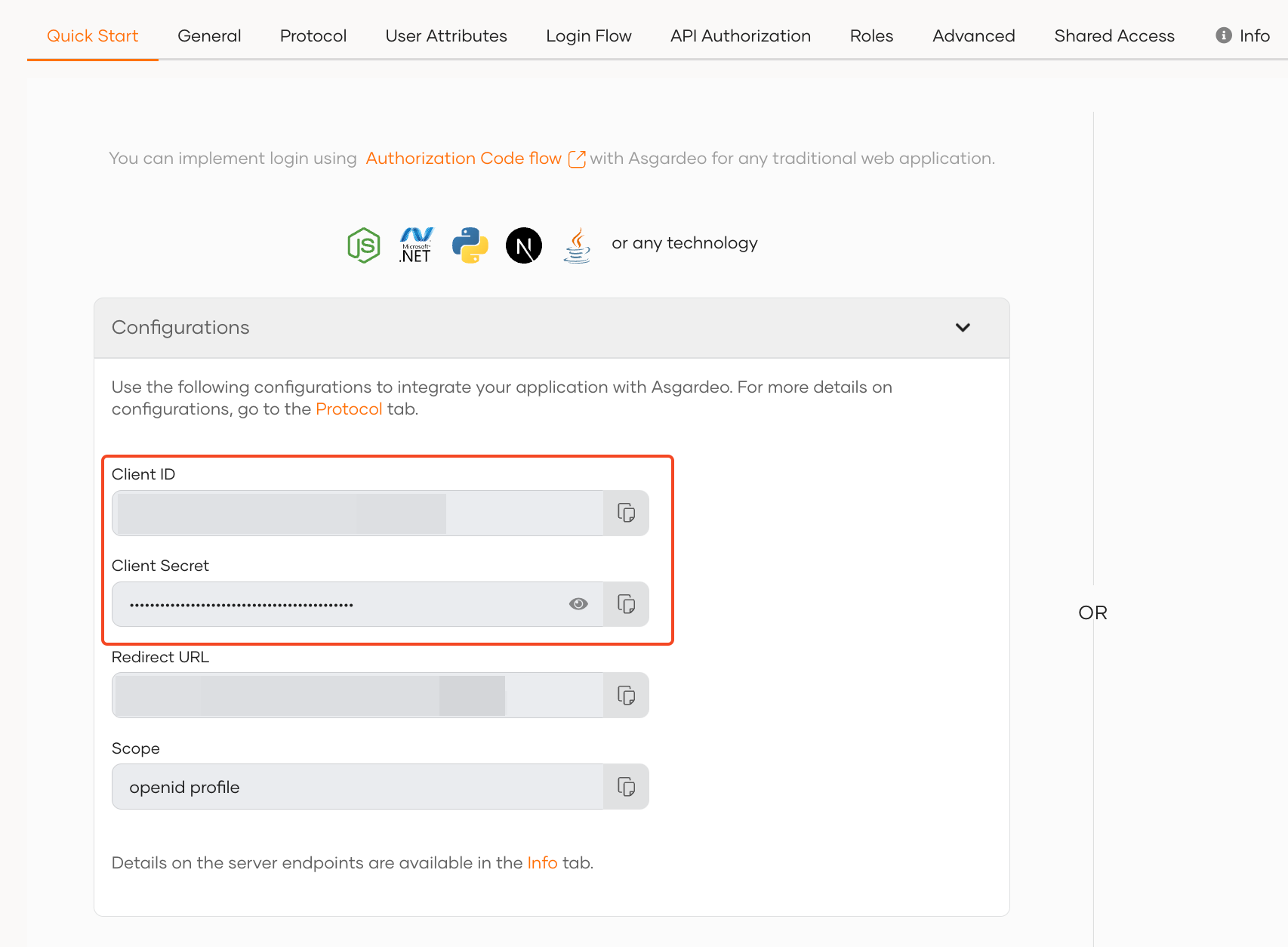
Make a note of the following values from the Protocol tab of the registered application. You will need them to configure Asgardeo provider for Auth.js.
Client IDClient Secret
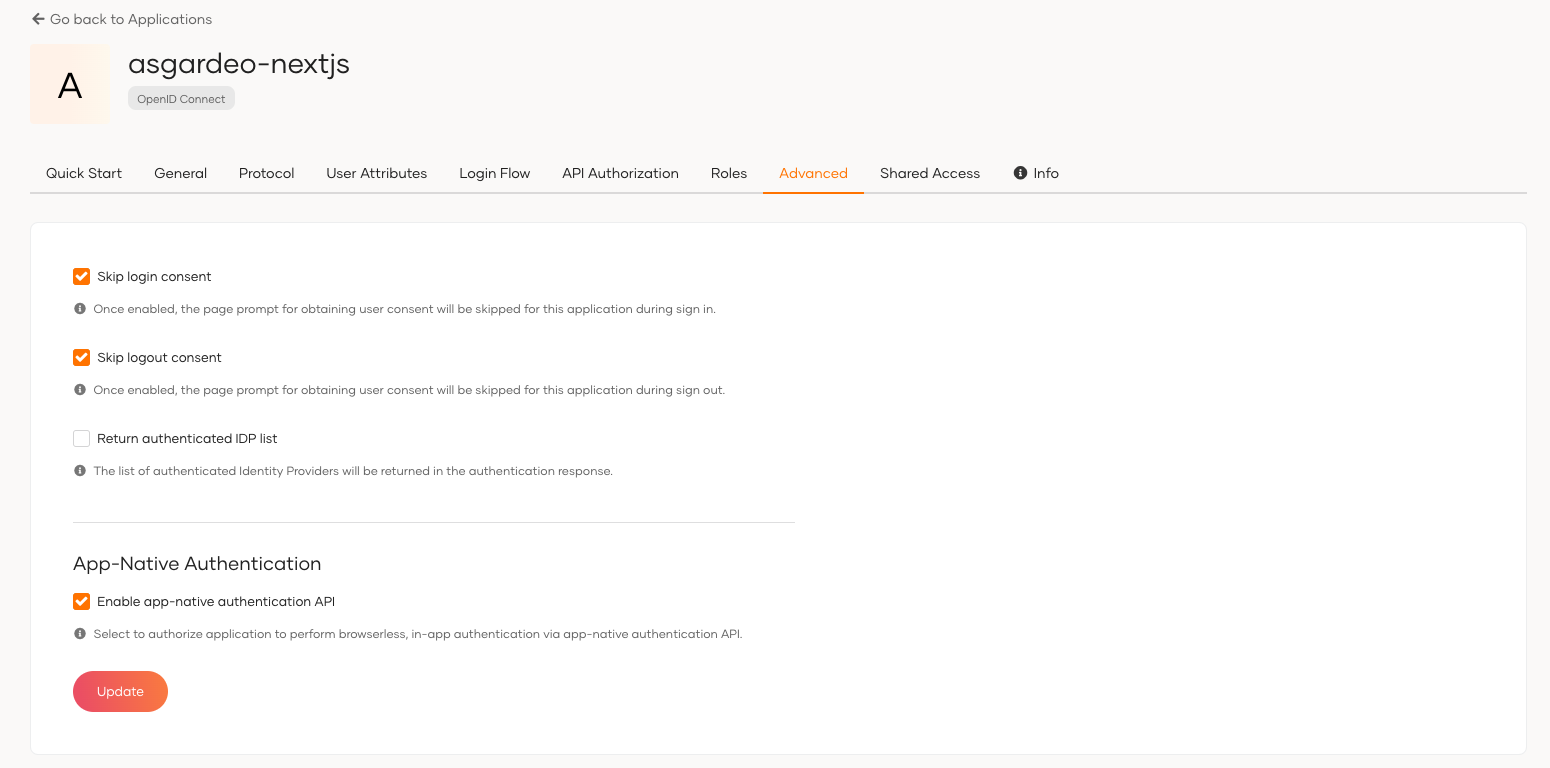
Since App Native Authentication is used, to enable this navigate to the Advanced section of the Application and tick the option for Enable app-native authentication API and click on the Update button to save the changes.
In this step, we have registered our Next.js app as an application with app-native authentication in the WSO2 Identity Server console and generated the required metadata. Next, we will create a Next.js app.