Manage Root Organizations (Tenants)
Note
Tenants will now be referred to as Root Organizations.
This change is to ensure consistency across our documentation and to better reflect the hierarchical structure of organizations.
WSO2 Identity Server, by default, is configured with a single root organization named carbon.super. If you have the required permissions, you can configure more root organizations and maintain multiple isolated user bases on a single server/cluster at the same time.
Info
Learn more about multi-tenancy.
Use REST APIs to manage root organizations
WSO2 Identity Server also offers REST APIs to conveniently manage root organizations. To try out the Tenant Management REST API, refer here.
Add a root organization
Follow the steps given below to add a new root organization from the WSO2 Identity Server Console.
-
Sign in to the Console of the
carbon.superroot organization.Info
To add and manage tenants using the WSO2 Identity Server Console, you need to be signed in as a super admin user. You can access the WSO2 Identity Server Console using the following URL:
https://<IS_HOST>:<PORT>/console. -
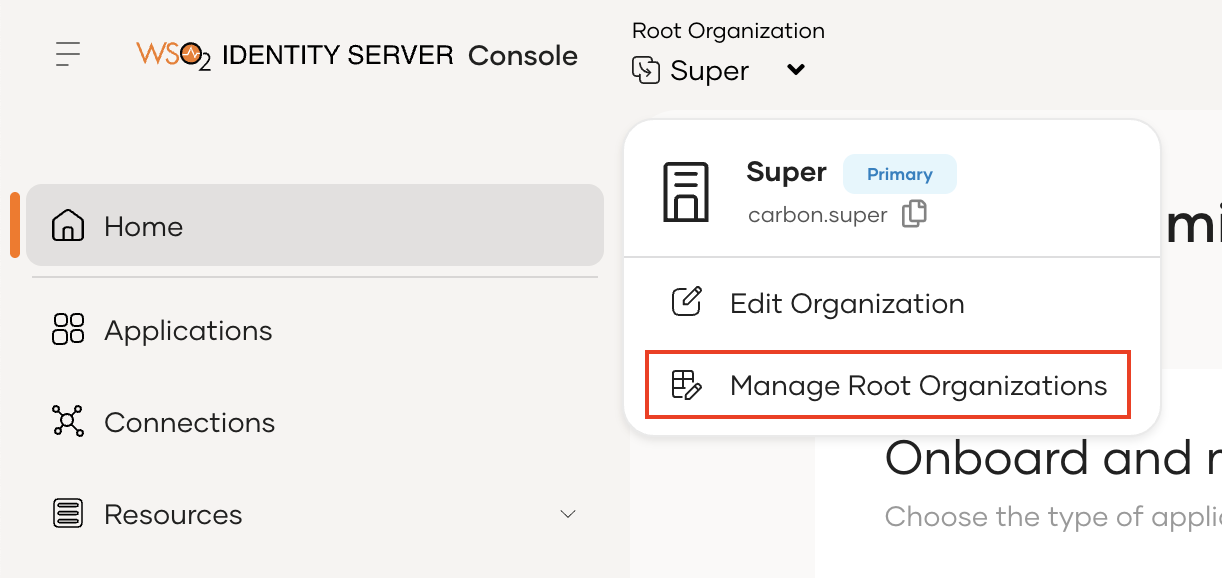
Open the Root Organization dropdown from the top left corner and click Manage Root Organizations.
-
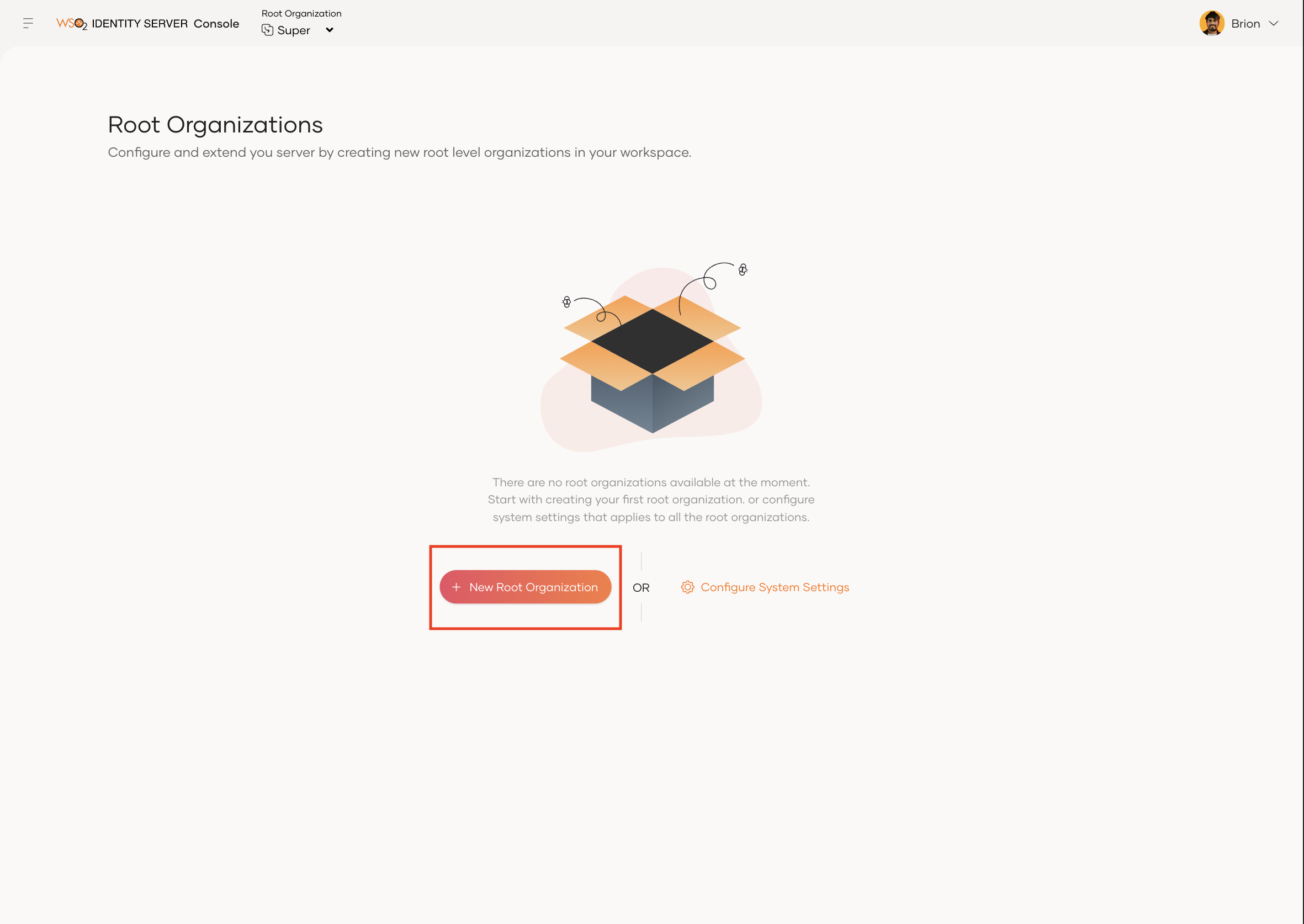
On the Root Organizations page, click on the New Root Organization button.
Info
If you have already created root organizations, this page will be populated with them and the button will appear on the top right corner of the page.
-
On the modal that opens up, enter the root organization details and click Create.
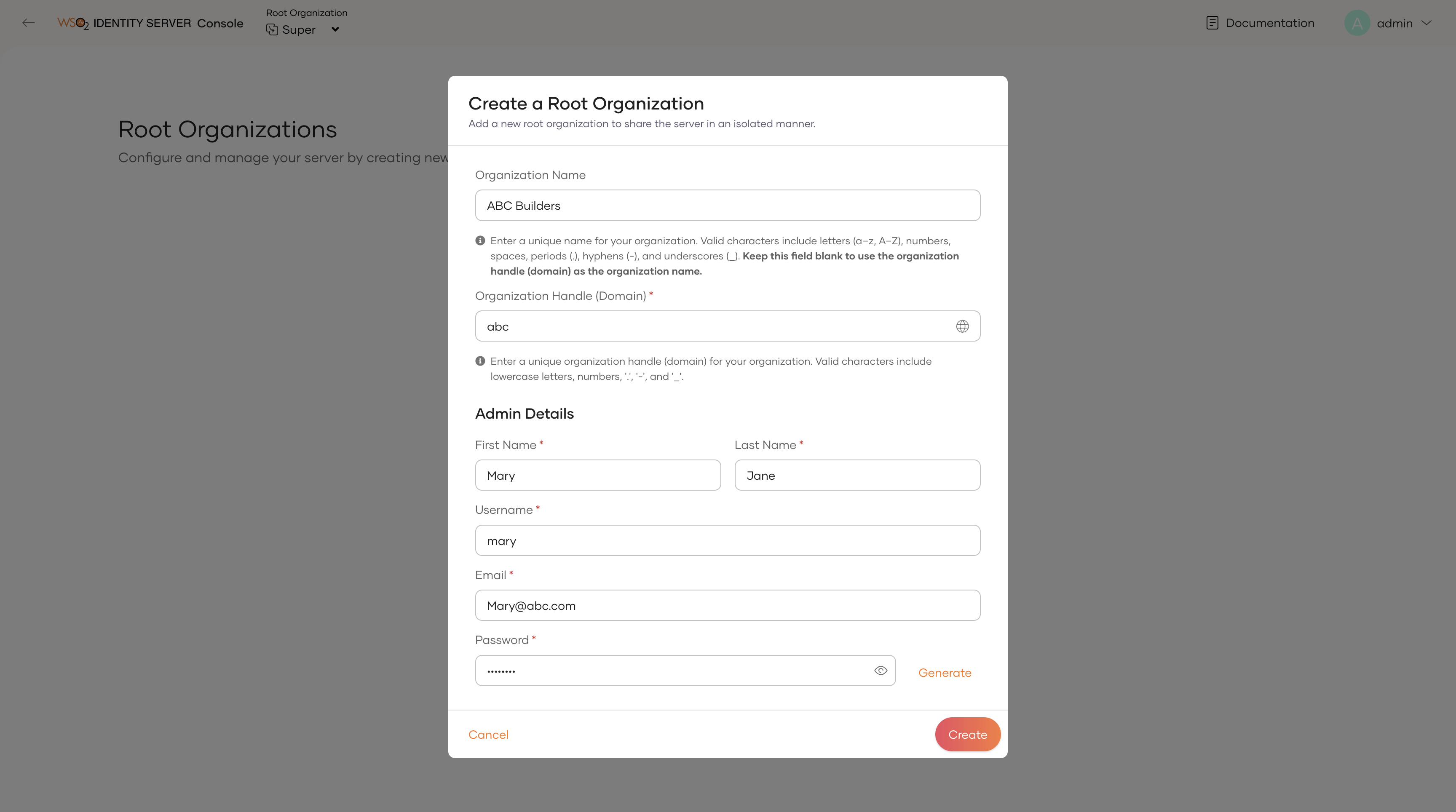
Parameter Name Description Organization NameEnter a user friendly name (for example, ABC Builders) for your organization. Your organization will use this name for branding purposes in notification templates. Organization Handle (Domain)Enter an organization handle (tenant domain) (for example, abc) to uniquely identify your organization. Access the new root organization's Console at https://<IS_HOST>:<PORT>/t/<DOMAIN>/console.First NameThe first name of the root organization admin. Last NameThe last name of the root organization admin. UsernameThe username of the root organization admin that will be used for signing in. EmailThe email address of the admin. PasswordThe password used when signing in with the username specified above. Note
Keep the Organization Name field blank to use the Organization Handle (tenant domain) as the name.
-
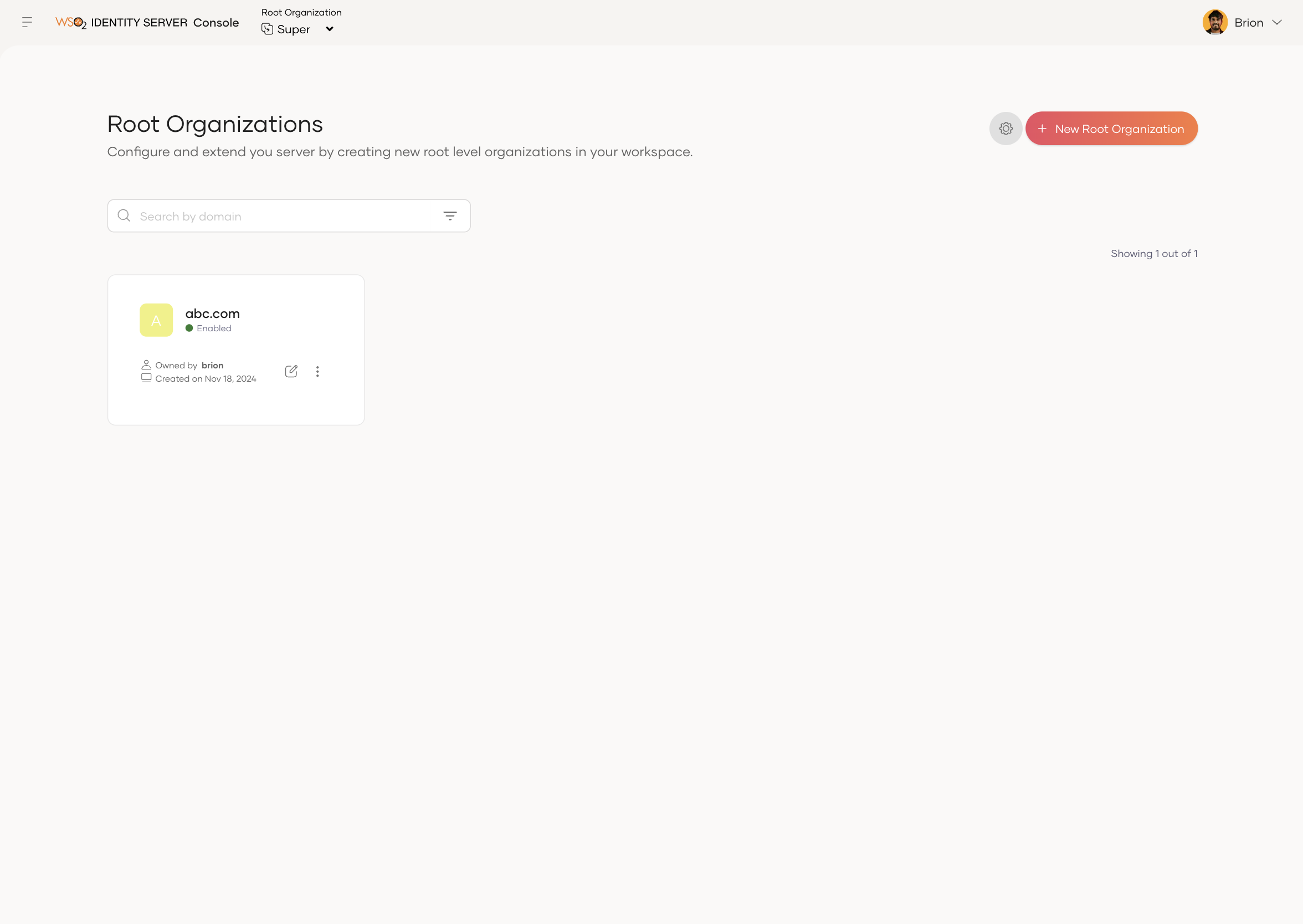
Once a new root organization is created, it will be listed in the Root Organization listing page as shown below.
View root organization details
To view the details of the root organization, follow the steps given below.
- Sign in to the
carbon.superroot organization on the WSO2 Identity Server Console. -
Open the Root Organizations dropdown from the left top corner and click Manage Root Organizations.
Info
You will see information of all the root organizations that currently exist in the system.
-
Several actions can be performed on the root organization from the Root Organizations listing page itself.
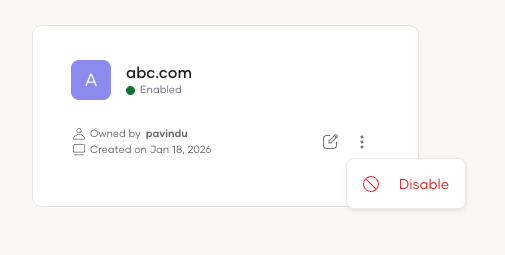
- Edit: Click on the Edit button to navigate to the details page of the respective root organization.
- More: Click on the elipsis icon to view more actions.
- Disable / Enable: Depending on the current status of the root organization, you can disable or enable it.
-
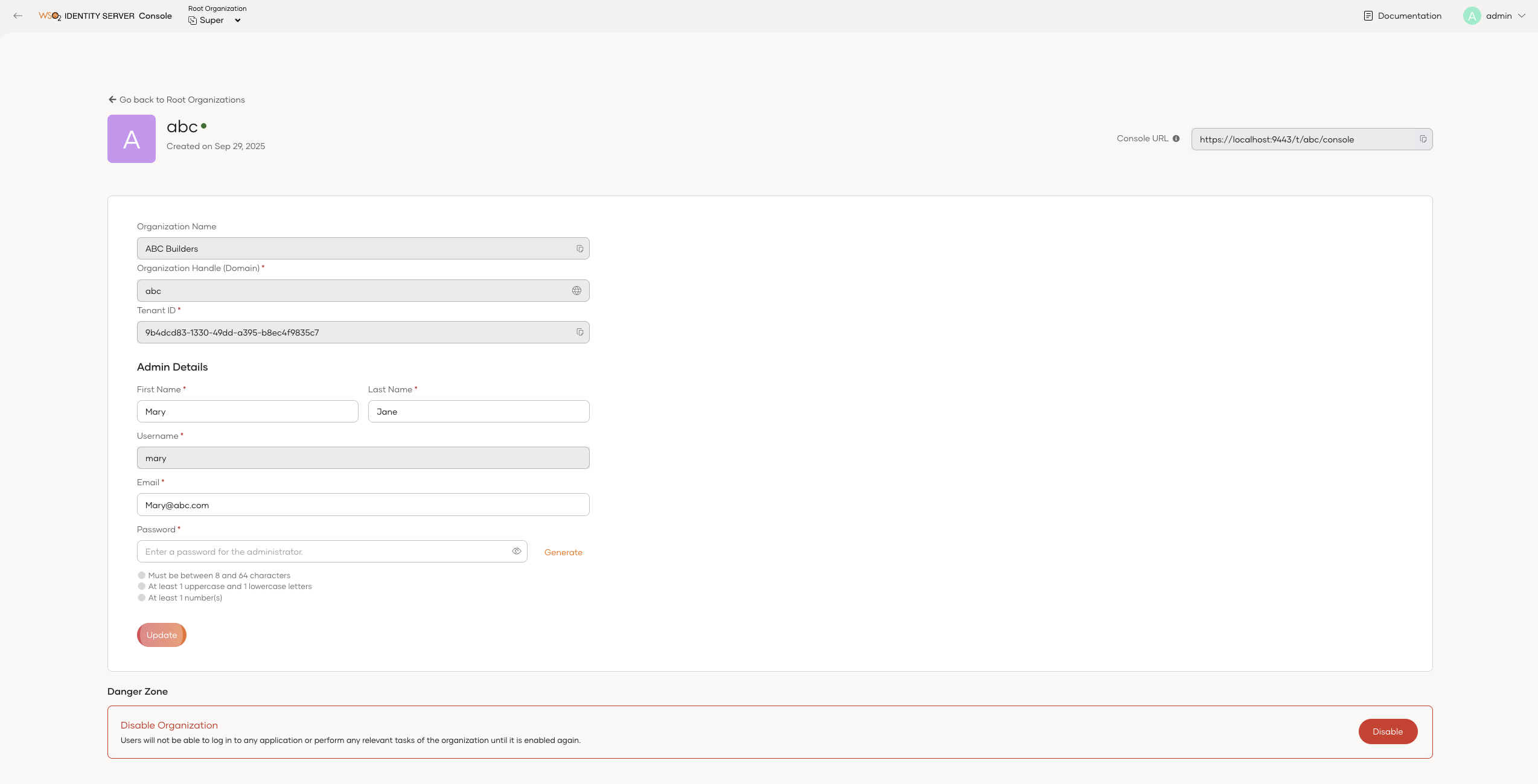
If you want to view details of a specific root organization, click on the Edit button of the respective root organization. Inside the root organization details page, you can perform the following actions:
- Edit Admin Details: You can update the first name, last name, email, and password of the root organization admin.
- Disable / Enable: Depending on the current status of the root organization, you can disable or enable it.
Filter root organizations
The root organizations page provides a powerful search and filtering feature to help you easily locate specific root organizations.
Note
Please note that the search and filter feature is case-insensitive.
Basic search
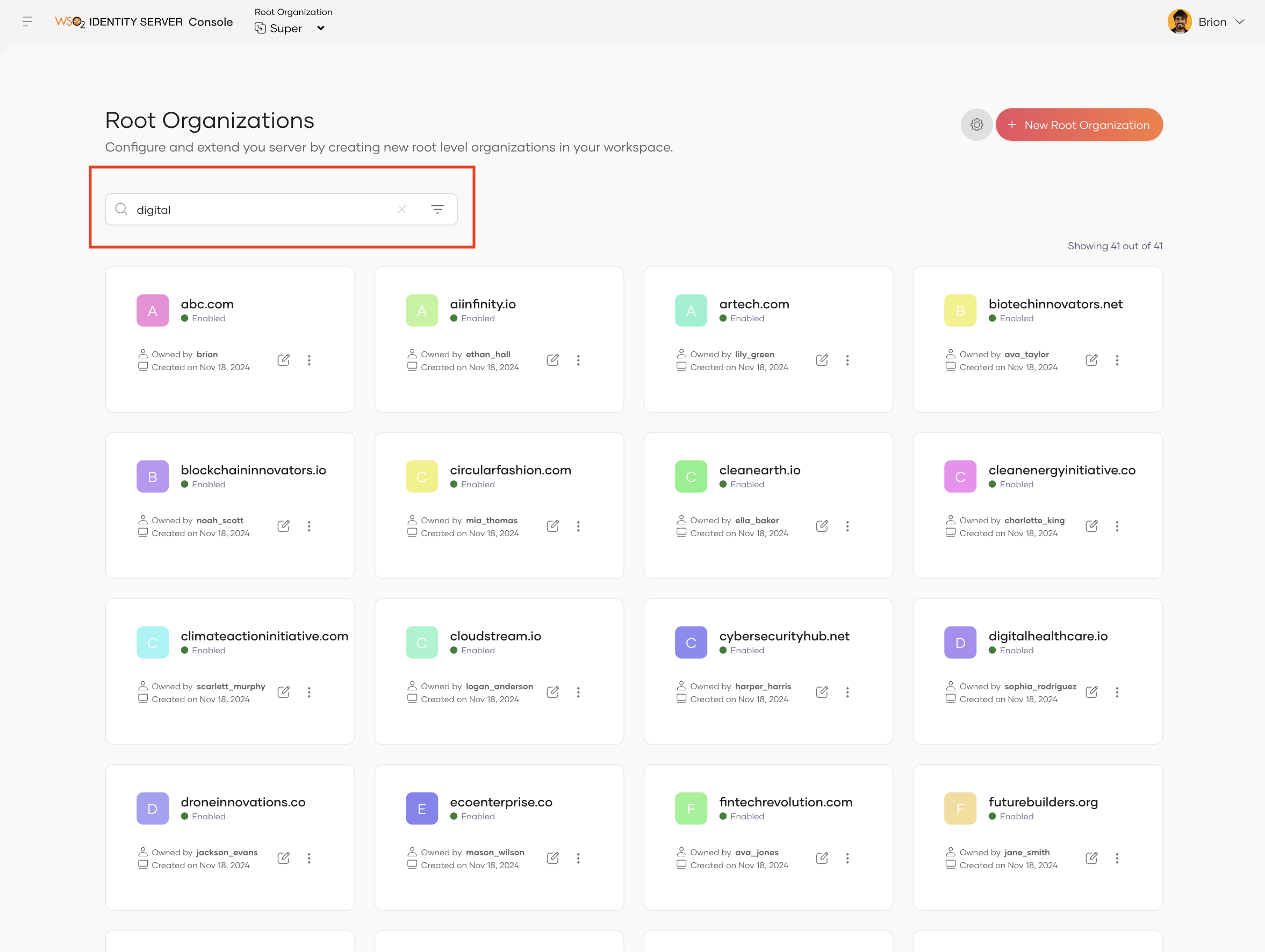
To simply search for a root organization by its domain name, enter the domain name in the search bar and press Enter.
This will do a basic search to find the root organizations that contain the search term in their domain name.
Advanced search
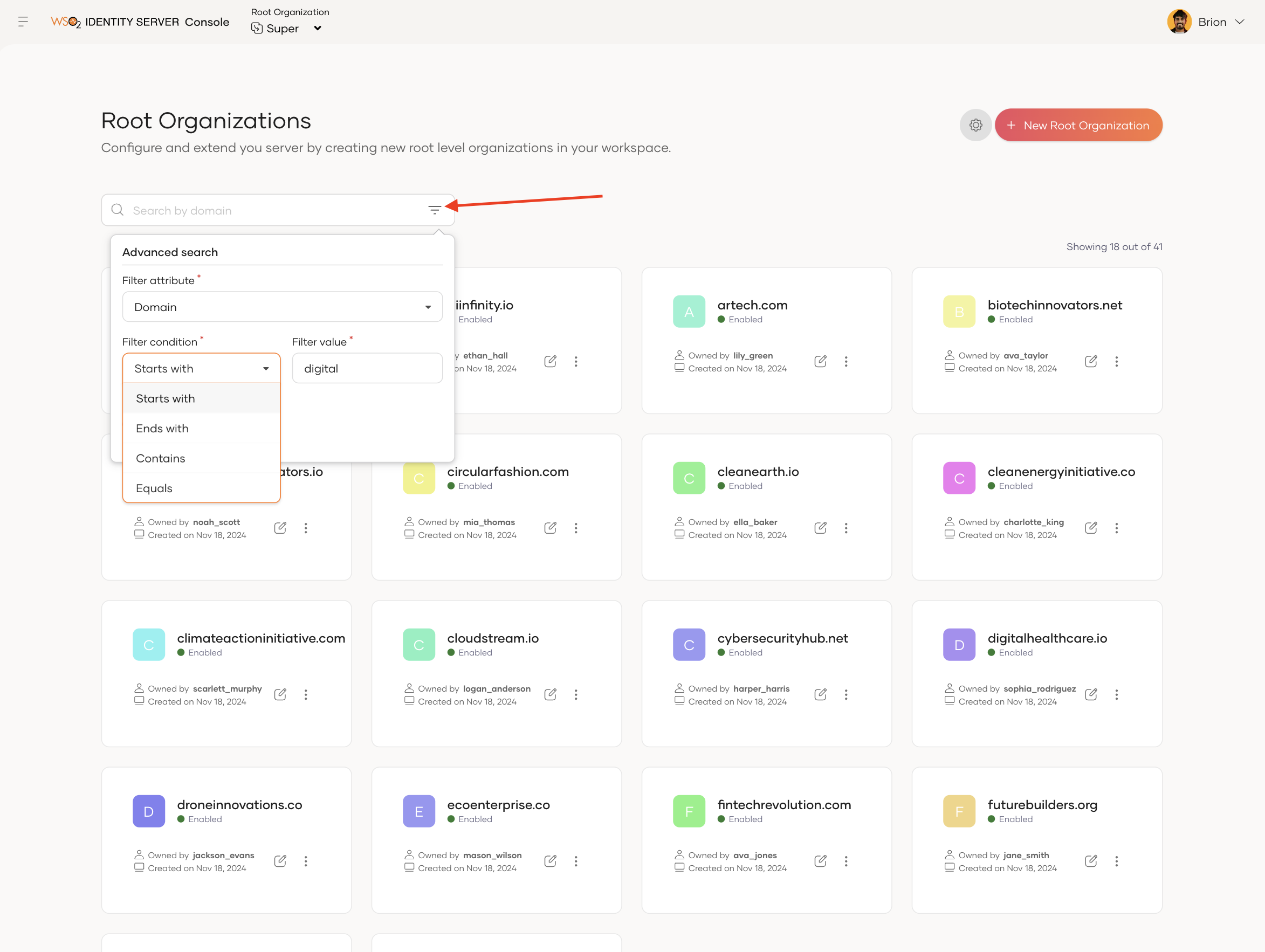
To perform an advanced search, click on the Filter icon. This will open up a popup where you can search for root organizations based on the following parameters:
-
Filter attribute: Search for root organizations based on an attribute.
Note
Currently, only the
Domainattribute is supported. -
Filter condition: Choose an operator to perform the search.
Starts with: Matches starting with the entered value.Ends with: Matches ending with the entered value.Contains: Matches containing the entered value.Equals: Matches containing exactly the entered value.
-
Filter value: Enter the search value.