OAuth Client Secret and Token Hashing
WSO2 Identity Server (WSO2 IS) lets you protect sensitive OAuth2 data at rest by enabling hashing. Two modes are supported:
- Full hashing — hash OAuth2 access tokens, refresh tokens, consumer secrets (client secrets), and authorization codes.
- Client-secret-only hashing — hash only consumer secrets (client secrets), leaving tokens and authorization codes unhashed.
If full hashing is enabled, it takes precedence; the client-secret-only configuration has no additional effect in that case.
Note
-
Token hashing is only required if there are long lived tokens.
-
If you want to enable this feature, WSO2 recommends using a fresh WSO2 Identity Server distribution.
-
To use this feature with an existing database, you may need to perform data migration before you enable the feature. If you have to perform data migration before you enable this feature, Contact us.
Set up OAuth token and client secret hashing
-
Add the following configurations to the
deployment.tomlfile found in the<IS_HOME>/repository/conffolder.-
Add the following property and set it to true to enable hashing.
-
Add the following configuration to specify the algorithm to use for hashing:
-
Add the following token persistence processor to enable token hashing:
[oauth.extensions]
token_persistence_processor = "org.wso2.carbon.identity.oauth.tokenprocessor.HashingPersistenceProcessor"
Tip
WSO2 Identity Server allows you to use hashing algorithms supported by MessageDigest. For more information on hashing algorithms supported by MessageDigest, see MessageDigest Algorithms.
The default algorithm for hashing is SHA-256.
-
-
Run the appropriate database command to remove the
CONN_APP_KEYconstraint from theIDN_OAUTH2_ACCESS_TOKENtable.For example, if you are using an H2 database, you need to run the following command:
Tip
In general, for a specified consumer key, user, and scope, there can be only one active access token. The
CON_APP_KEYconstraint in theIDN_OAUTH2_ACCESS_TOKENtable enforces this by allowing only one active access token to exist for specified consumer key, user, and scope values.With regard to hashing, a new access token is issued for every access token request. Therefore, for a given consumer key, user, and scope, there can be multiple active access tokens. To allow existence of multiple active access tokens, you need to remove the
CONN_APP_KEYconstraint from theIDN_OAUTH2_ACCESS_TOKENtable.
Set up client secret hashing only
Note
This feature is available only from WSO2 Identity Server Update 7.2.0.25 onwards.
Use this mode to enable hashing for client secrets only, while leaving access tokens, refresh tokens, and authorization codes in their existing form. This mode is disabled by default. If full hashing is already enabled, it takes precedence and this configuration has no additional effect.
-
Add the following configurations to the
deployment.tomlfile found in the<IS_HOME>/repository/conffolder.[oauth] hash_client_secret = true client_secret_hash_algorithm = "SHA-256" [oauth.extensions] client_secret_persistence_processor = "org.wso2.carbon.identity.oauth.tokenprocessor.HashingPersistenceProcessor"Note
hash_client_secretdefaults tofalse.client_secret_hash_algorithmdefaults toSHA-256. WSO2 Identity Server allows you to use hashing algorithms supported by MessageDigest. For more information on hashing algorithms supported by MessageDigest, see MessageDigest Algorithms.
Warning
Enabling this feature does not hash client secrets that are already stored in the database. A separate migration is required to hash previously stored client secrets. See the client secret hashing migration scripts for details.
Configure a service provider
Follow the steps below to register an application:
-
On the WSO2 Identity Server Console, go to Applications.
-
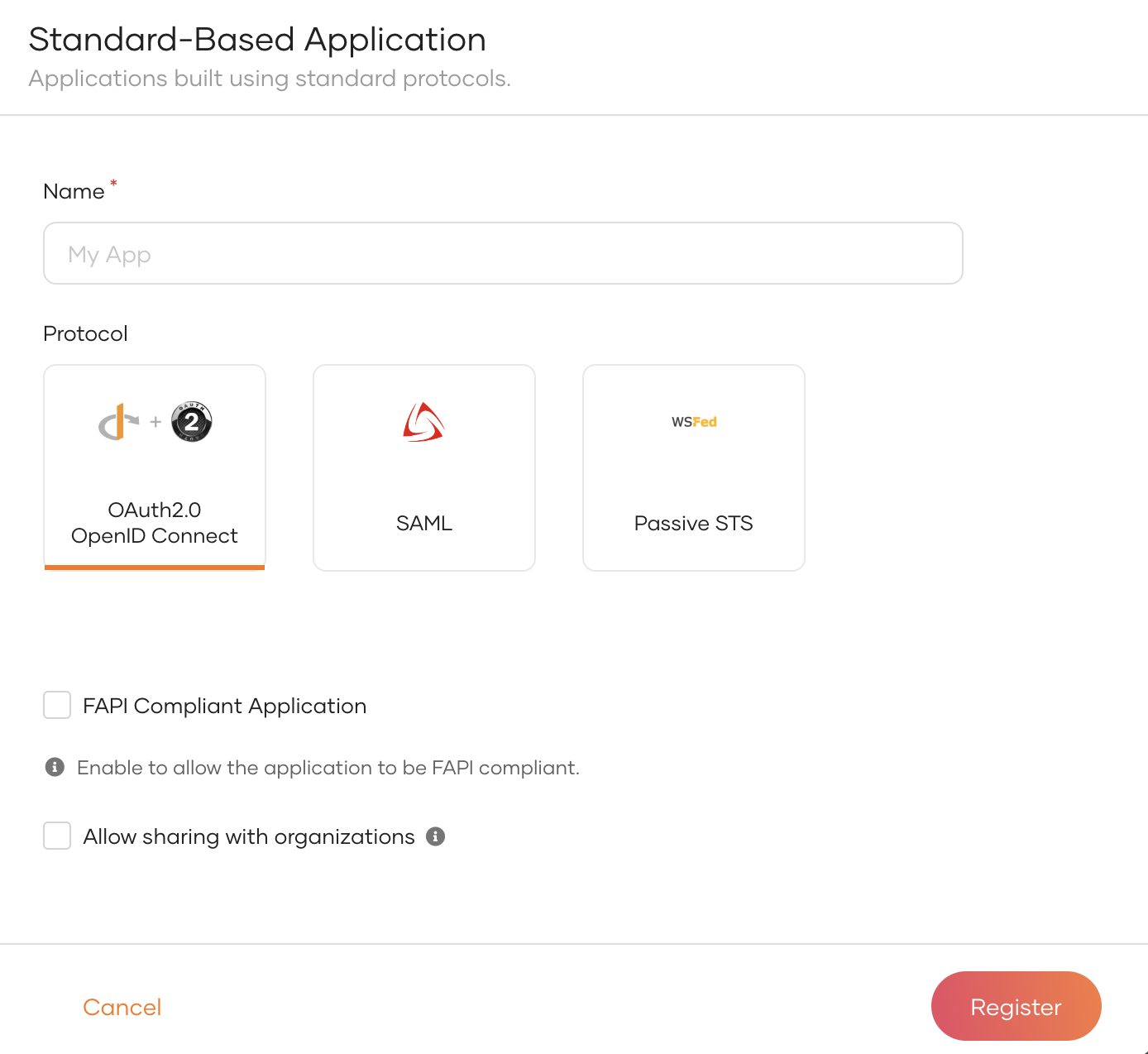
Click New Application and select Standard-Based Application to open the following:
-
Provide an application name.
-
Select OAuth 2.0 OpenID Connect as the application protocol.
-
Click Register to complete the registration.
Tip
The Consumer Secret value is displayed in plain text only once. Therefore, be sure to copy and save it for later use.
You have successfully set up OAuth hashing. Depending on the mode you configured, the corresponding OAuth2 artifacts (all tokens and secrets, or client secrets only) will now be hashed in the database.