Encrypt ID tokens
This page guides you through configuring token encryption for ID tokens.
Register an application
Register an application by following the instructions in the relevant guide based on your application type:
- Register a standard-based application
- Register an OIDC web application
- Register a single-page application
- Register a mobile application
Configure the application
Make the following changes to the registered application.
-
On the WSO2 Identity Server Console, go to Applications.
-
Select your application and go to its Protocol tab.
-
Enter the Authorized redirect URLs.
Note
The Authorized redirect URLs is the exact location in the application to which an access token will be sent. This URL should be the URL of the page that the user is redirected to after successful authentication.
-
Select Enable ID Token Encryption to enable ID token encryption.
Once you enable ID token encryption, two select boxes will be visible to choose your preferred encryption algorithm and encryption method.
-
Encryption Algorithm: Asymmetric encryption algorithm that is used to encrypt the Content Encryption Key (CEK), using the public key of the application.
-
Encryption Method: Symmetric encryption algorithm that is used to encrypt the JWT claims set using the CEK.
Leave these values as they are if you do not have any specific requirements.
-
-
Click Update.
Configure the public certificate
The following steps describe how to configure an application public certificate.
-
Create a new keystore.
-
Create a file and name it as the client ID of the OAuth application. Export the public key of the new keystore to the file you created.
-
Get the cert in X509 format.
You will see the public certificate in X509 format in the console.
-
Copy the content of the certificate. A sample output is shown below.
-----BEGIN CERTIFICATE----- MIIDVzCCAj+gAwIBAgIETCZA8zANBgkqhkiG9w0BAQsFADBcMQswCQYDVQQGEwJG UjEMMAoGA1UECBMDTVBMMQwwCgYDVQQHEwNNUEwxDTALBgNVBAoTBHRlc3QxDTAL BgNVBAsTBHRlc3QxEzARBgNVBAMMCioudGVzdC5jb20wHhcNMTgwMjE0MDYzNjE3 WhcNNDgwMjA3MDYzNjE3WjBcMQswCQYDVQQGEwJGUjEMMAoGA1UECBMDTVBMMQww CgYDVQQHEwNNUEwxDTALBgNVBAoTBHRlc3QxDTALBgNVBAsTBHRlc3QxEzARBgNV BAMMCioudGVzdC5jb20wggEiMA0GCSqGSIb3DQEBAQUAA4IBDwAwggEKAoIBAQCz Gc/BcXCiIagLhXs1g90H+PbfZyXLzwFJ+YmsKMikcffhyopDD+fnFjHb1+XXSnUh 4XzQlFba6m2vIOK8uquMhZKMv/E7Vxkl/ADTuw/BgpZRut4p88Fn8OWZlrJfoi3o hvgfxSMratvxLMp1Qe0BzjwoBDB9r+h9pj8kCpHC824eUGIR0FZsW9lnoJP2LegL nAcOJuNBoeWC0wwNu0sgIJwjsKp3G3glm8B4GdZvbF8aW1QRAk36sh8+0GXrRnAz aGcRAqt7CjeZmt5Dsuy0lfp5i1xf5myPOH7MwKHqQQ56Wu9O479NdDVLkJ0xne2r ZTCwMeGhQQH5hI+SYlxjAgMBAAGjITAfMB0GA1UdDgQWBBTzS+bja//25xb+4wcP gMN6cJZwoDANBgkqhkiG9w0BAQsFAAOCAQEAdhZ8romzQQKF9c8tJdIhUS4i7iJh oSjBzN+Ex9+OJcW6ubcLb8pai/J3hcvMadAybR1A17FkETLFmG9HkuEN9o2jfU7c 9Yz5d0pqO8qNKXSqHky5c+zA4vzLZGsgKyDZ5a0p9Qpsat3wnA3UGZPRoVGV5153 Mb0J1n1uubxGobEEzR2BXaKO9YEWAMQwGRdQCGBaIeGUOpqSUJMLYirDXL03je3g mYzWclLTEHpIYy+a66tmF9uTGgyys33LPm2pQ+kWd8FikWolKKBqp+IPU5QdUQi1 DdFHsyNqrnms6EOQAY57Vnf91RyS7lnO1T/lVR6SDk9+/KDBEL1b1cy7Dg== -----END CERTIFICATE----- -
On the WSO2 Identity Server Console, go to Applications and select your application.
-
Go to the Advanced tab.
-
Select PEM Certificate under Certificate type.
-
Paste the certificate content copied in step 4 in the PEM Certificate field.
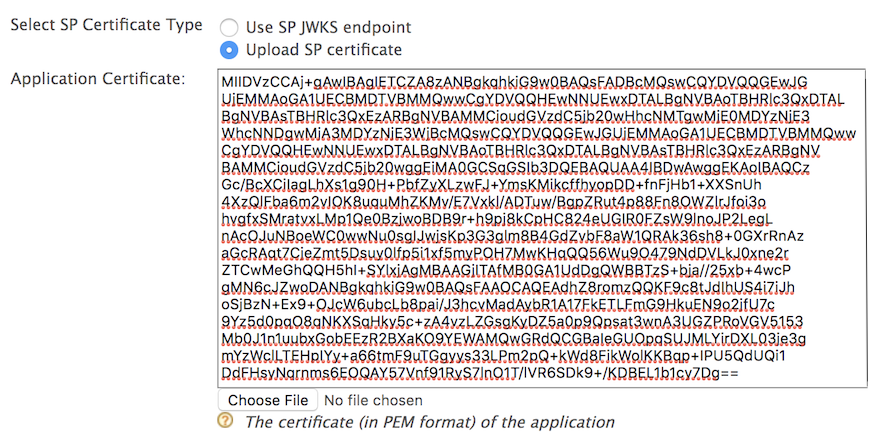
Note
Instead of uploading the application certificate as shown above, you can choose to use the JWKS endpoint as shown below and add the relevant JWKS URI.
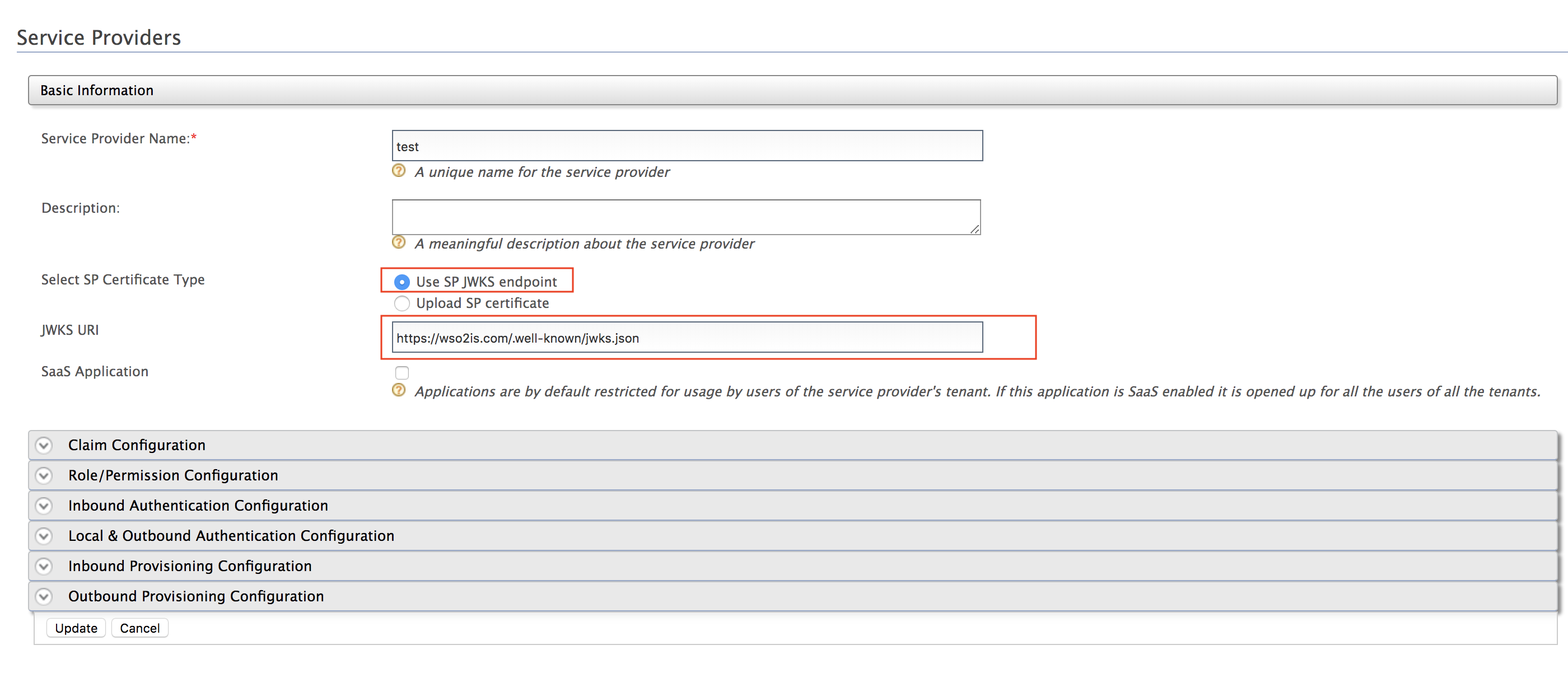
-
Click Update.
Try it
This section guides you through obtaining an encrypted ID token and decrypting it. Alternatively, you can use a simple Java program to decrypt the token. For instructions, see Decrypt the ID token.
-
See the relevant OIDC flow implementation guide and try out one of the grant types with the
openidscope to obtain an access token: -
You will receive an access token and an encrypted ID token.
-
To decrypt the ID token, provide the private key of the client.
-
Import JKS into a PKCS12 formatted store.
-
Extract the private key into a file named
key.pem. -
Open the created
key.pemfile using a text editor and you will see the extracted private key. -
Copy only the key string as shown in the sample below.
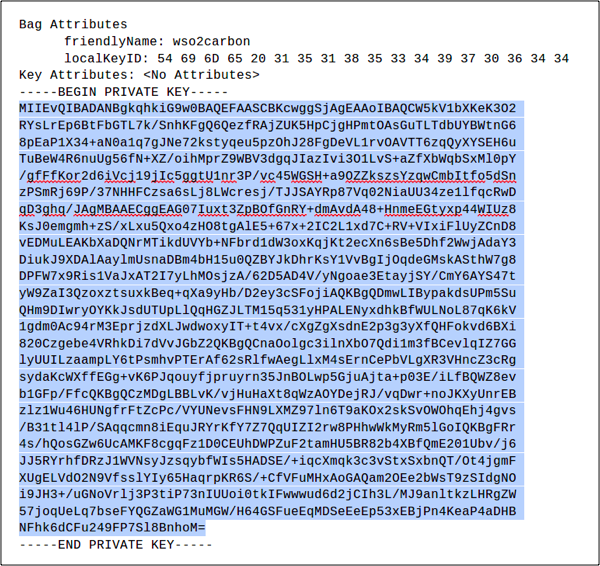
-
Use the private key to decrypt the ID token.
-