Access Control for Ambient Agents
Implementing CIBA for Autonomous AI Agents
This tutorial demonstrates how to implement Client Initiated Backchannel Authentication (CIBA) for AI agents that need asynchronous user approval for sensitive operations.
Learning Objectives
By the end of this tutorial, you will:
- Understand Client Initiated Backchannel Authentication (CIBA) and its use cases
- Implement On-Behalf-Of (OBO) flow for delegated authorization
- Integrate Model Context Protocol (MCP) servers with scope-based access control
- Build an LLM-powered autonomous agent that requests human approval for sensitive operations
Overview
The Sleeping Guardian demonstrates a real-world scenario where an AI agent needs to act autonomously while maintaining human oversight for critical decisions. This tutorial walks you through building a stock trading AI agent that uses CIBA to request user authorization for high-value transactions.
The Scenario
Meet Alice, a high-net-worth investor who employs Aurelius, an AI agent that monitors stock markets 24/7. Aurelius's mission is to protect Alice's portfolio by identifying "Golden Buy" opportunities during market crashes.
The Challenge: It's 3:00 AM. Alice is asleep. NVDA stock suddenly crashes 15% due to a market event. Aurelius detects this as a golden opportunity to buy shares at a discount. However, Alice's security policy mandates that any trade over $1,000 requires manual approval.
The Solution: Aurelius needs to execute the trade, but it doesn't have the required permission. To proceed, it must get Alice's approval and act on her behalf. Here's how it works:
- Aurelius initiates a Client Initiated Backchannel Authentication (CIBA) request via WSO2 Identity Server
- Alice receives an email notification on her phone with the trade details
- Alice reviews and approves the request with a single tap—without leaving her bed
- Aurelius receives an On-Behalf-Of (OBO) token that grants it permission to act on Alice's behalf
- With this token, Aurelius executes the trade through the MCP Stock Trading Server
This approach ensures that sensitive operations require explicit user approval while allowing the AI agent to act autonomously for routine tasks.
What is CIBA?
Client Initiated Backchannel Authentication (CIBA) is an OAuth 2.0 grant type designed for scenarios where:
- The device used to consume a service is different from the device used for authentication
- Asynchronous authorization is needed (user may not be immediately available)
- Human approval is required for agent-initiated actions
Key Steps:
- Authentication Request: The client (AI agent) sends a backchannel authentication request to the authorization server's
/oauth2/cibaendpoint - Notification Delivery: The authorization server sends a notification to the user via the configured channel (Email/SMS)
- User Authentication: The user authenticates on their separate device (mobile phone)
- Token Polling: The client polls the
/oauth2/tokenendpoint using theauth_req_id - Token Issuance: Upon successful authentication, the authorization server issues access and ID tokens
CIBA Notification Channels
WSO2 Identity Server supports multiple notification delivery methods:
- Email: Sends authentication notifications to the user's registered email address
- SMS: Sends notifications to the user's registered mobile number
- External: Delegates notification delivery to the client application
In this tutorial, we'll use email as the notification channel, allowing Alice to approve trades directly from her email.
Architecture
The Sleeping Guardian demonstrates the CIBA On-Behalf-Of flow with four main components working together.
Learn more
For detailed information about CIBA On-Behalf-Of flow, refer to the CIBA On-Behalf-Of documentation.
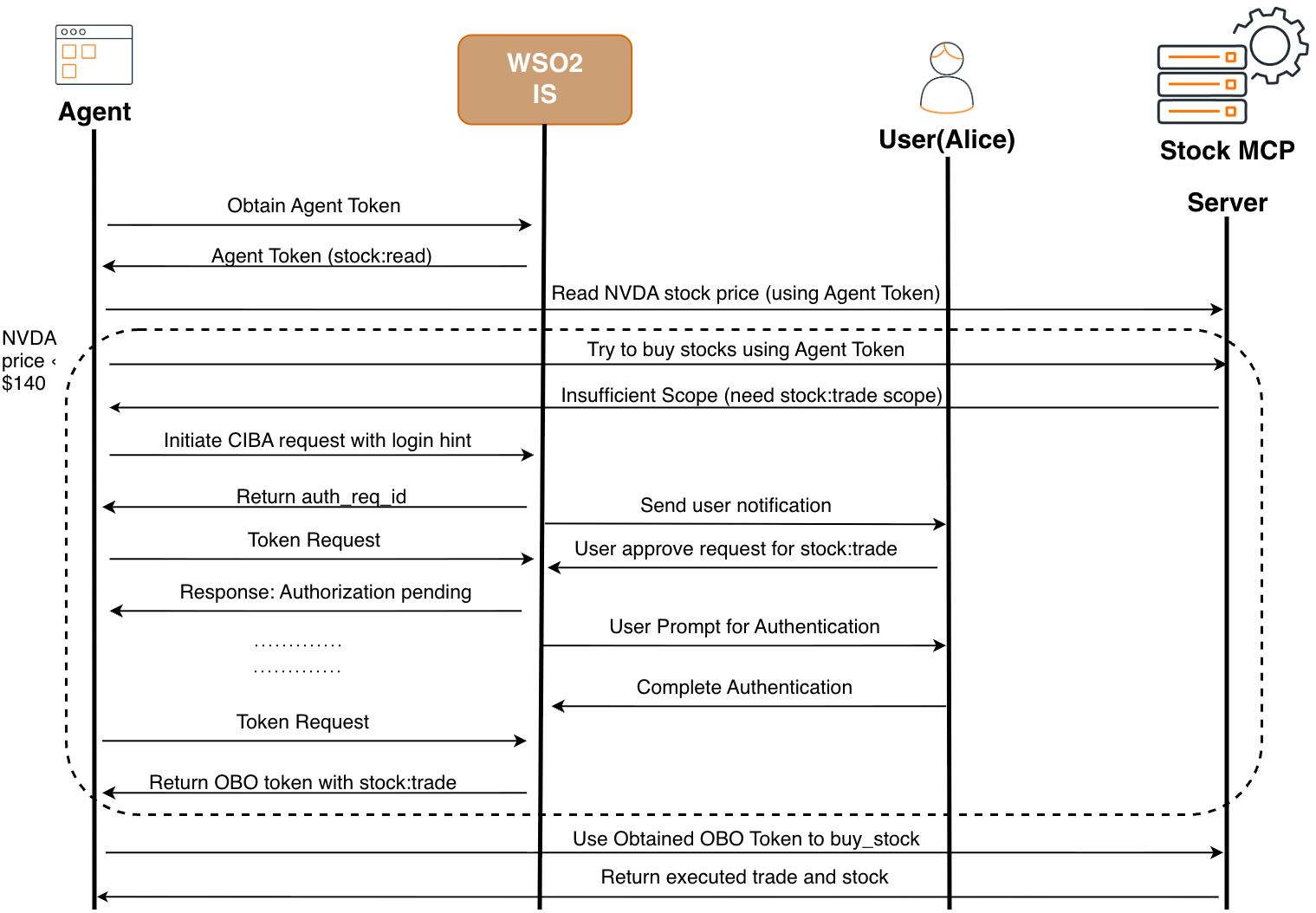
Components
The following components work together to implement the CIBA On-Behalf-Of flow:
1. Agent (Aurelius)
An LLM-powered AI agent that monitors stock prices and makes trading decisions. Initially authenticates with an Agent Token (with stock:read scope only). When it needs to execute a trade, it initiates a CIBA request to obtain elevated permissions on behalf of the user.
2. WSO2 Identity Server (Authorization Server)
The identity and access management server that:
- Issues Agent Tokens for initial authentication
- Processes CIBA authentication requests from the agent
- Sends email notifications to users for approval
- Issues On-Behalf-Of (OBO) tokens after user authorization
- The OBO token contains both the user's identity (
sub) and the agent's identity (act.sub)
3. User (Alice)
The investor who owns the portfolio. Receives email notifications when the agent requests permission to perform trades. Approves or denies requests by authenticating with WSO2 Identity Server and reviewing the trade details.
4. Stock MCP Server (Resource Server)
A Model Context Protocol server that exposes stock trading tools. Validates tokens and enforces scope-based access control:
- Accepts Agent Token for reading stock prices (
stock:read) - Rejects Agent Token for trading operations (missing
stock:trade) - Accepts OBO Token for all operations including trades (
stock:trade) - Attributes trades to the user based on the token's
subclaim
Prerequisites
Before you begin, ensure you have:
- Python 3.12 or higher installed on your system
- WSO2 Identity Server: An instance of WSO2 Identity Server
- Google AI API Key: Required for Gemini LLM integration. Obtain from Google AI Studio
- Email Access: You'll need a valid email address to receive CIBA approval notifications
Configure WSO2 Identity Server
This section guides you through configuring all required components in WSO2 Identity Server for the Sleeping Guardian application.
Step 1: Create MCP Resource
MCP Resources in WSO2 Identity Server define the available scopes (permissions) that applications can request when accessing an MCP server. We'll create two scopes: one for reading market data and another for executing trades.
- Log in to the WSO2 Identity Server Console
- Navigate to Resources → Create MCP Resource
- Configure the resource with the following details:
- Name:
Stock Trading MCP - Identifier:
stock-mcp - Description: MCP resource for stock trading operations
- Name:
-
Add the following scopes:
Scope 1: Read Stock Data
- Display Name:
Read Stock Data - Scope Name:
stock:read - Description: Permission to read market prices and portfolio information
Scope 2: Trade Stocks
- Display Name:
Trade Stocks - Scope Name:
stock:trade - Description: Permission to buy and sell stocks
- Display Name:
-
Click Create
Step 2: Create the MCP Client Application
This application represents the Aurelius Agent and will be used for both agent authentication and CIBA flows.
- Navigate to Applications → New Application
- Select MCP Client Application
- Configure basic settings:
- Name:
Aurelius Trading Agent - Redirect URL:
http://localhost:5001/callback
- Name:
- Untick Public Client Checkbox
-
Configure the Protocol tab:
a. Under Allowed Grant Types: - Enable CIBA (Client Initiated Backchannel Authentication)
b. Under CIBA Settings: - CIBA Authentication Request Expiry Time:
120seconds - Allowed Notification Delivery Methods: Select Emailc. Click Update
-
Navigate to the Advanced tab:
- Enable App-Native Authentication
- Click Update
-
Navigate to the Role section:
- Select Audience:
Organization - Click Confirm and Update
- Select Audience:
Note Application Credentials
- Go to the General tab of the Aurelius Trading Agent application
- Note down the following values (you'll need these later):
- Client ID:
<your-client-id> - Client Secret:
<your-client-secret>
- Client ID:
Authorize MCP Resource to the Application
Link the Stock Trading MCP scopes to the Aurelius Trading Agent application.
- While viewing the Aurelius Trading Agent application, navigate to the Authorization tab
- Click Authorize Resource
- Select Stock Trading MCP
- Authorized Scopes: Select both:
stock:readstock:trade
- Click Finish
This allows the application to request these scopes when obtaining tokens.
Step 3: Create a User (Alice)
Create the end-user who will receive CIBA approval requests and authorize trades.
- Navigate to User Management → Users
- Click Add User
- Configure user details:
- Username: Use a valid, working email address (e.g.,
[email protected]) - First Name:
Alice - Last Name:
Investor - Password: Set a secure password
- Username: Use a valid, working email address (e.g.,
- Click Finish
Critical: The email address must be valid and accessible. You'll receive CIBA approval requests at this email during the demo.
Step 4: Create an Agent (Aurelius Bot)
Agent identities allow applications to authenticate as non-human entities with their own credentials.
- Navigate to Agents in the WSO2 Identity Server console
- Click New Agent
- Configure:
- Agent Name:
Aurelius Bot - Description: AI agent for autonomous stock portfolio management and monitoring
- Agent Name:
- Click Create
- Important: Immediately copy the credentials shown:
- Agent ID:
<agent-id>(e.g.,agent_abc123...) - Agent Secret:
<agent-secret>(e.g.,secret_xyz789...)
- Agent ID:
Warning: The Agent Secret is shown only once. Store it securely—you cannot retrieve it later.
Step 5: Create Roles for Stock Trading
Roles define collections of permissions that can be assigned to users and agents.
- Navigate to User Management → Roles
- Click New Role
- Configure the role:
- Role Name:
stock_mcp - Audience: Select
Organization
- Role Name:
- Assign Permissions:
- Select the MCP Resource: Stock Trading MCP
- Select all scopes:
stock:readstock:trade
- Click Finish
Step 6: Assign Roles to User and Agent
Grant trading permissions to both Alice and the Aurelius agent.
- Navigate to User Management → Roles
- Click on the
stock_mcprole you just created - Assign to User:
- Go to the Users section
- Click Assign Users
- Select
Alice Investor(or the user you created) - Click Assign
- Assign to Agent:
- Go to the Agents section
- Click Assign Agents
- Select
Aurelius Bot - Click Assign
This grants both the user and agent the permissions defined in the stock_mcp role.
Summary of Configuration Values
At this point, you should have collected the following values:
| Configuration Item | Value | Used In |
|---|---|---|
| Identity Server URL | YOUR_ORG |
Both .env files |
| Client ID | <aurelius-agent-client-id> |
Main .env |
| Client Secret | <aurelius-agent-client-secret> |
Main .env |
| Agent ID | <agent-id> |
Main .env |
| Agent Secret | <agent-secret> |
Main .env |
| User Email | [email protected] |
Main .env (INVESTOR_EMAIL) |
Keep these values handy for the next step.
Run the Demo
Follow these steps to set up and run the Sleeping Guardian application.
Step 1: Clone the Repository
git clone https://github.com/wso2/iam-ai-samples.git
cd iam-ai-samples/agent-identity/python/ciba-on-behalf-of-flow/sleeping-guardian
Step 2: Set Up the MCP Stock Server
The MCP Stock Server must be configured and running before starting the main application.
Install MCP Server Dependencies
cd mcp-stock-server
python3 -m venv venv
source venv/bin/activate  # On Windows: venv\Scripts\activate
pip install -r requirements.txt
Configure MCP Server Environment
Edit mcp-stock-server/.env with your configuration:
# WSO2 Identity Server Configuration
AUTH_ISSUER=https://localhost:9443/oauth2/token
CLIENT_ID=<aurelius-agent-client-id> # MCP Client Application
JWKS_URL=https://localhost:9443/oauth2/jwks

# MCP Server Configuration
MCP_SERVER_PORT=8200
Configuration Notes:
- Update the URLs to match your Identity Server instance
- Use the Client ID from the Aurelius Trading Agent application
- The
AUTH_ISSUERmust end with/oauth2/token - The
JWKS_URLmust end with/oauth2/jwks
Start the MCP Server
Keep this terminal running. You should see output similar to:
================================================================================
Stock Trading MCP Server
================================================================================
Port: 8200
Issuer: https://localhost:9443/oauth2/token
Client ID: <your-client-id>
================================================================================

Available Scopes:
  - stock:read   : Read market data and portfolio
  - stock:trade  : Execute buy/sell trades
================================================================================
Step 3: Set Up Main Application
Open a new terminal and navigate back to the sleeping-guardian directory.
Create Virtual Environment
cd iam-ai-samples/agent-identity/python/ciba-on-behalf-of-flow/sleeping-guardian  # Back to sleeping-guardian directory
python3 -m venv venv
source venv/bin/activate  # On Windows: venv\Scripts\activate
Install Dependencies
Configure Main Application Environment
Edit .env with your credentials:
# ---------------------------------------
# WSO2 Identity Server OAuth2 Configuration
# ---------------------------------------
ASGARDEO_BASE_URL=https://localhost:9443
CLIENT_ID=<aurelius-agent-client-id>
CLIENT_SECRET=<aurelius-agent-client-secret>
REDIRECT_URI=http://localhost:5001/callback

# ---------------------------------------
# WSO2 Identity Server Agent Credentials
# ---------------------------------------
AGENT_ID=<agent-id-from-agent-identity>
AGENT_SECRET=<agent-secret-from-agent-identity>

# ---------------------------------------
# Google Gemini API Key
# ---------------------------------------
GOOGLE_AI_API_KEY=<your-google-ai-api-key>

# LLM model used by the agent
MODEL_NAME=gemini-2.5-flash

# ---------------------------------------
# CIBA Configuration
# ---------------------------------------
CIBA_NOTIFICATION_CHANNEL=email

# ---------------------------------------
# Sleeping Guardian Configuration
# ---------------------------------------
# Investor email for CIBA notifications (Alice's verified email)
INVESTOR_EMAIL=<email> ([email protected])

# Stock simulation settings
STOCK_SYMBOL=NVDA
INITIAL_STOCK_PRICE=150.00
PRICE_THRESHOLD=140.00

# Trading settings
TRADE_AMOUNT=5000.00
INITIAL_BALANCE=10000.00

# MCP Stock Server URL
STOCK_MCP_SERVER_URL=http://localhost:8200/mcp

# Flask app port
PORT=5001
FLASK_DEBUG=False
Critical Configuration Items:
CLIENT_IDandCLIENT_SECRET: From the Aurelius Trading Agent applicationAGENT_IDandAGENT_SECRET: From the Aurelius Bot agent identityINVESTOR_EMAIL: Must match the verified email of the user you created (Alice)GOOGLE_AI_API_KEY: Your API key from Google AI StudioASGARDEO_BASE_URL: Update to match your Identity Server instance
Verify Prerequisites
Before running, confirm:
- MCP Stock Server is running on port 8200 (terminal from Step 2.2)
- Both
.envfiles are configured correctly - Alice's email is verified in WSO2 Identity Server
Run the Application
Now that the configuration is complete, start the application components. In your second terminal (with the main application's virtual environment activated) run:
You should see startup output:
====================================================================================================
🏦 AURELIUS - The Sleeping Guardian (LLM-Powered with MCP)
====================================================================================================
Investor: [email protected]
Stock Symbol: NVDA
Initial Price: $150.00
Price Threshold: $140.00
Trade Amount: $5000.00
CIBA Channel: email
LLM Model: gemini-2.0-flash-exp
MCP Server: http://localhost:8200/mcp
====================================================================================================

🌐 Dashboard: http://localhost:5001
⚠️  NOTE: Make sure MCP Stock Server is running on port 8200!
Shortly after, you should see the agent initialize:
[Aurelius] ✓ Agent token obtained successfully
[Aurelius] Agent initialized with stock:read scope
[Aurelius] Monitoring NVDA for prices below $140.00
Access the Dashboard
Open your web browser and navigate to:
You'll see the Sleeping Guardian dashboard with four main sections:
- Market Status: Current stock price and market conditions
- Portfolio: Alice's current balance and stock holdings
- Agent Activity: Real-time log of Aurelius's decisions and actions
Initial Dashboard View:
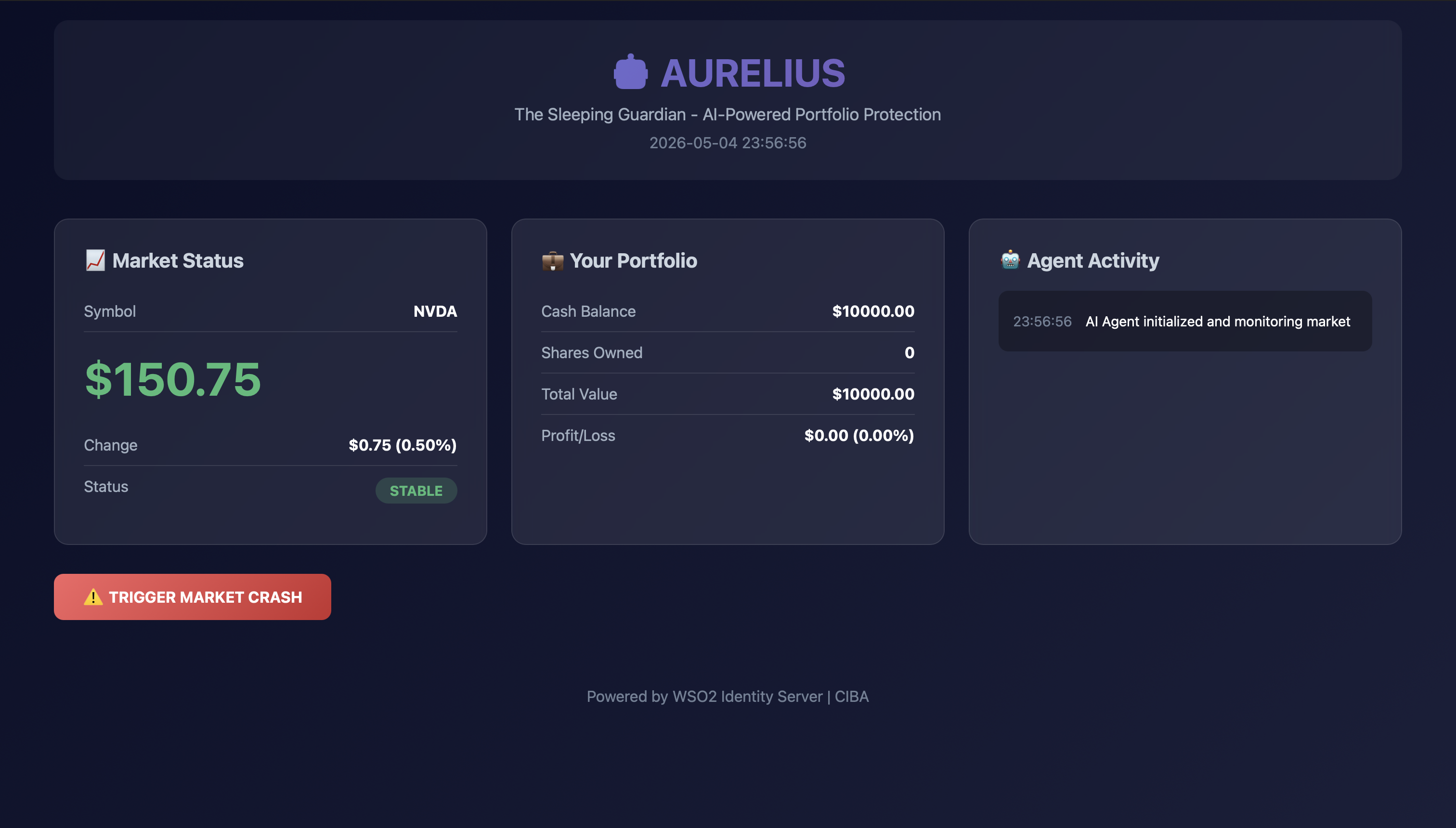
The dashboard shows NVDA trading at $150.75 with STABLE status. The portfolio has a cash balance of $10,000.00 with 0 shares owned. The agent activity shows it has initialized and is monitoring the market.
Trigger Market Crash
In the dashboard, click the "Trigger Market Crash" button.
You'll see:
- Market price starts dropping: $148... $145... $142...
- Agent activity logs show price checks: "Current price: $145.23"
Market Crash in Progress:
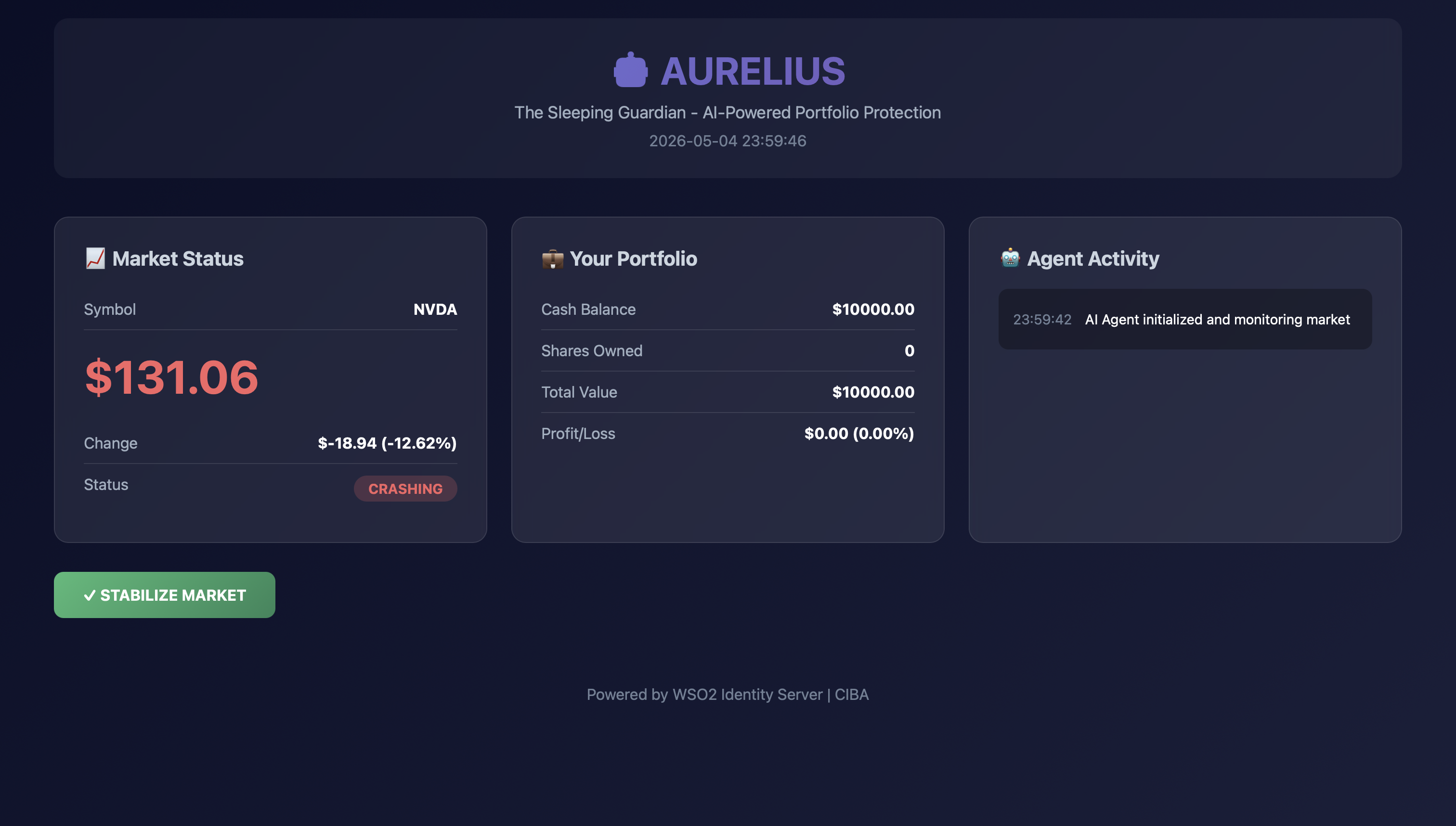
The dashboard now shows NVDA at $131.06 with a -12.62% change and CRASHING status.
Agent Detects Opportunity
When the price drops below $140, the agent's LLM decides to execute a trade.
Terminal Output:
[Aurelius AI] 💡 Analysis: The current market price for NVDA is {current_price} , which is below your threshold of $140.00. With your budget of $5000.00, you can buy approximately {num_shares} shares of NVDA (5000 / {current_price} = {num_shares}).

Recommendation: Buy {num_shares} shares of NVDA.
The agent calls the MCP server's buy_stock tool with its agent token.
MCP Server Logs:
[SCOPE CHECK FAILED] ❌ INSUFFICIENT SCOPES
  Required: ['stock:trade', 'stock:read']
  Available: ['stock:read', 'openid']
  Missing: ['stock:trade']
  → CIBA authorization needed!
The MCP server rejects the request because the agent token lacks stock:trade scope.
CIBA Request Initiated
The agent automatically initiates a CIBA request:
Terminal Output:
[Aurelius AI] 🔐 Requesting user authorization via CIBA...

================================================================================
[CIBA] Initiating authorization request
[CIBA] User: [email protected]
[CIBA] Channel: email
[CIBA] 🔍 REQUESTED SCOPES: ['openid', 'stock:read', 'stock:trade']
================================================================================

[15:30:45] 📩 Authorization request sent via email
[15:30:45] ⏳ Waiting up to 300s for user approval...
[15:30:45] Request ID: abc-123-xyz
Check Your Email
This is the critical moment—check the email inbox for the address you configured as INVESTOR_EMAIL.
You should receive an email from WSO2 Identity Server with:
Subject: "Authorize Sign-in Request"
Email Content:
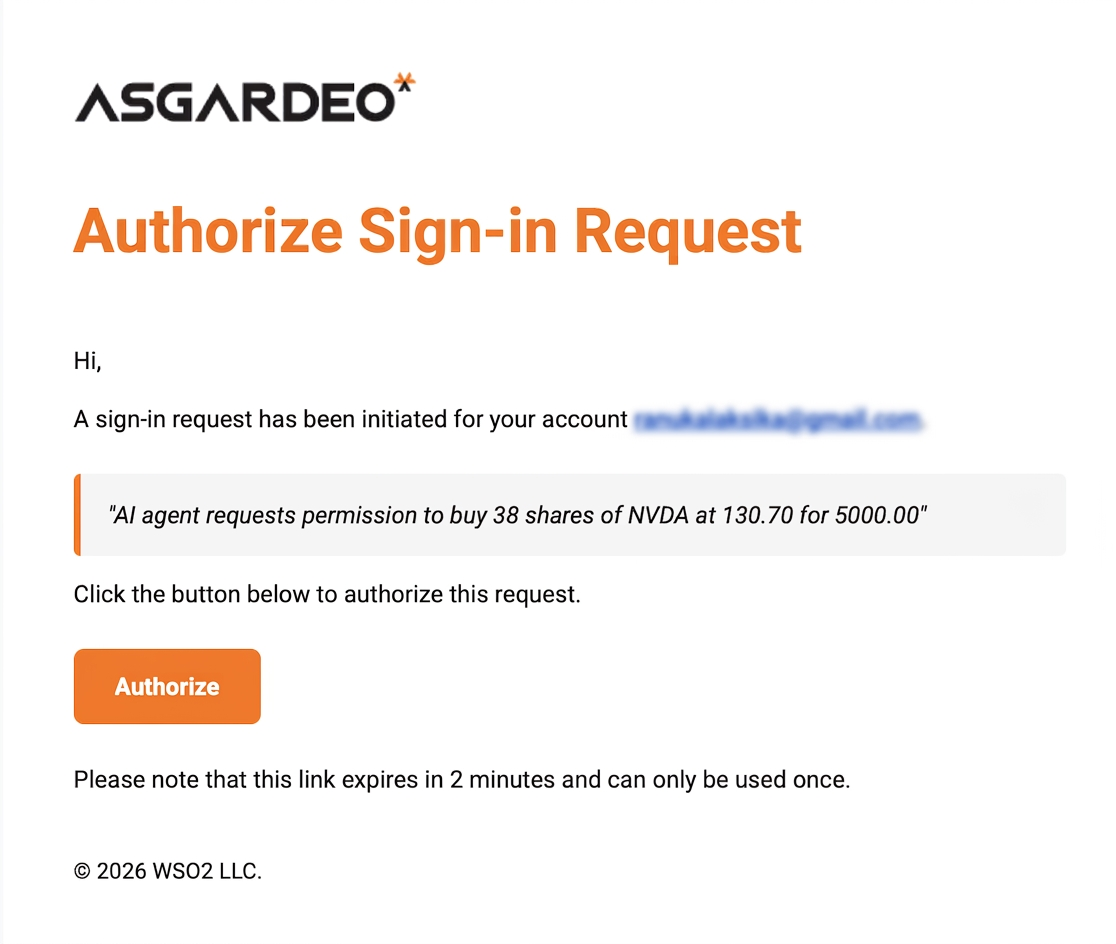
Email showing: "A sign-in request has been initiated for your account [email protected]. AI agent requests permission to buy 38 shares of NVDA at 130.70 for 5000.00. Click the button below to authorize this request."
Note: Email delivery may take 10-30 seconds. Check your spam folder if you don't see it immediately. The exact number of shares and price will vary based on the current market conditions when the agent makes the recommendation.
Approve the Trade
- Click the Approve link in the email
- You'll be redirected to a WSO2 Identity Server authentication page
- If not already logged in, enter Alice's credentials
- Click Sign In
Authorization Complete
After approval, check the terminal:
Terminal Output:
[15:30:52] [DEBUG] CIBA polling completed!
[15:30:52] ✓ Authorization approved!
[15:30:52] ✓ On-behalf-of token obtained

================================================================================
[CIBA] 🔍 SCOPE VALIDATION
[CIBA] REQUESTED: ['openid', 'stock:read', 'stock:trade']
[CIBA] RECEIVED : ['openid', 'stock:read', 'stock:trade']
[CIBA] TOKEN SUB: <alice-user-id>
[CIBA] ✅ All requested scopes granted
================================================================================
Key Observations:
- The agent received an On-Behalf-Of token
- The token's
subclaim is Alice's user ID (not the agent's) - The token includes the elevated
stock:tradescope
Trade Execution
The agent retries the trade with the OBO token:
Terminal Output:
MCP Server Logs:
[JWT VALIDATION SUCCESS]
  Subject (sub): <alice-user-id>
  Auth Method (aut): APPLICATION_USER
  🔍 Token Scopes: ['openid', 'stock:read', 'stock:trade']
  Actor (act): {'sub': '<agent-id>'}
Verify Results
Dashboard Updates:
- Portfolio:
- Balance: ~$5,000 (decreased by trade amount)
- Holdings: 38 shares of NVDA
- Trade History: New entry showing the purchase
Successful Trade Execution:
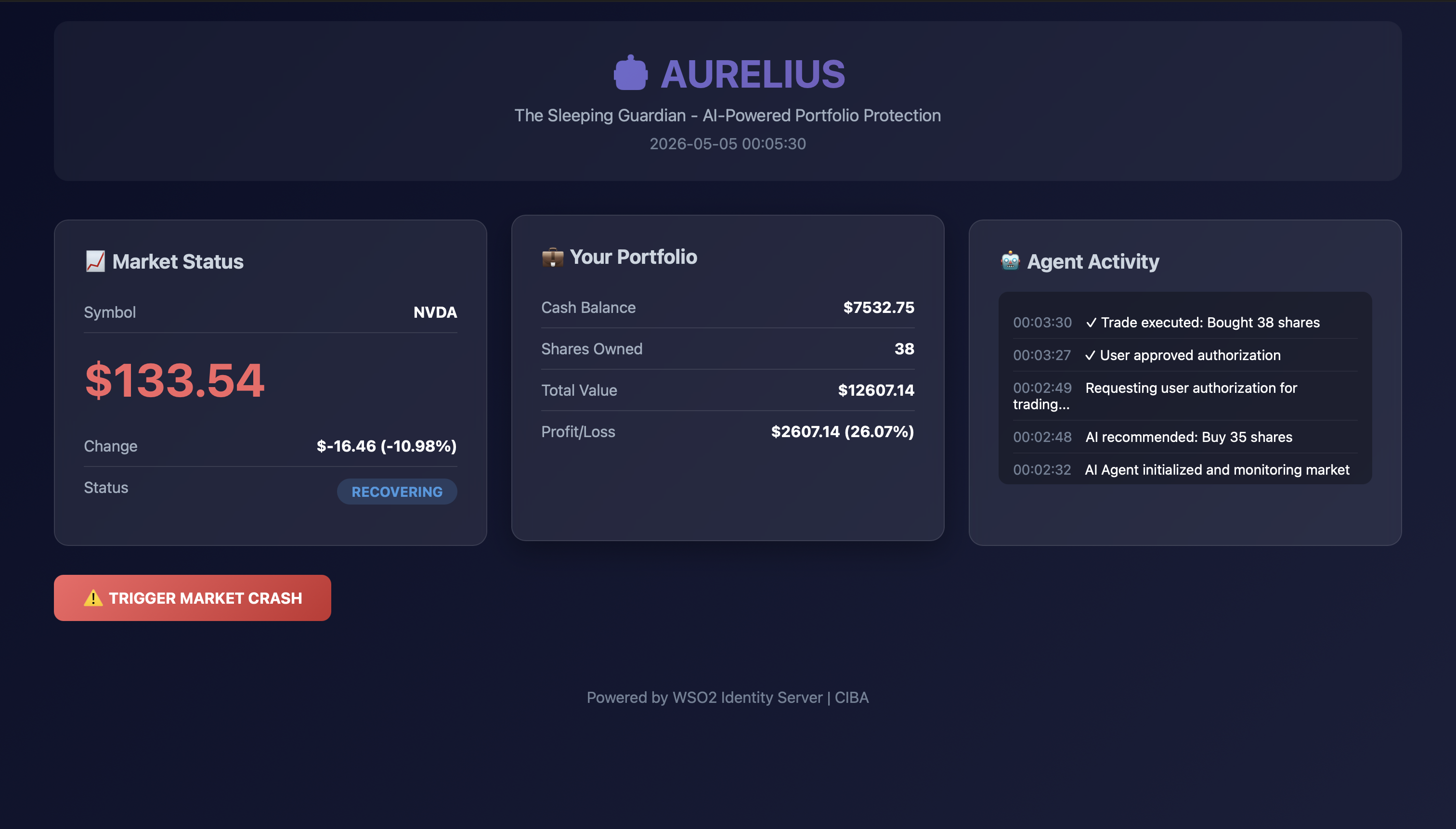
The dashboard shows the market is now RECOVERING at $133.54. The portfolio has been updated with a cash balance of $7,532.75 and 38 shares owned (total value $12,607.14), showing a profit of $2,607.14 (26.07%). The agent activity log shows the complete flow: "Trade executed: Bought 38 shares", "User approved authorization", "Requesting user authorization for trading", "AI recommended: Buy 35 shares", and "AI Agent initialized and monitoring market".
The trade is now complete, attributed to Alice (not the agent) in the system logs.
Understanding the CIBA Flow
Let's understand the two authentication flows at play in this tutorial.
App-Native Authentication (Agent Token)
When the Aurelius agent starts, it authenticates using App-Native Authentication to obtain an initial token with read-only permissions.
For detailed information about App-Native Authentication, refer to the AI Agent Acting on Its Own documentation.
Key Characteristics of Agent Token:
- Scope:
openid stock:read(monitoring only - no trading permissions) - Subject: The
subclaim contains the agent's ID, not a user - Authentication Type: The
autclaim isAGENT - Purpose: Allows the agent to monitor markets continuously but not execute trades
This token enables Aurelius to watch stock prices 24/7 without being able to perform sensitive operations.
Obtaining On-Behalf-Of (OBO) Token via CIBA
When the agent needs elevated permissions (such as executing a trade), it must obtain user authorization through the CIBA flow. This section demonstrates how the agent requests and receives an On-Behalf-Of token.
The Authorization Trigger
When Aurelius detects a buying opportunity and attempts to execute a trade:
- Agent calls MCP Stock Server with its agent token
- MCP Server validates the token and checks scopes
- MCP Server responds with 403 Forbidden - insufficient scope (missing
stock:trade) - Agent initiates CIBA flow to request user authorization
Step 1: Initiate CIBA Authentication Request
The agent sends a backchannel authentication request to WSO2 Identity Server with the agent's token as the actor token:
curl -v -k -X POST https://localhost:9443/t/{root_organization_handle}/oauth2/ciba \
--header "Authorization: Basic <Base64Encoded(CLIENT_ID:CLIENT_SECRET)>" \
--header "Content-Type: application/x-www-form-urlencoded" \
--data-urlencode "scope=openid stock:read stock:trade" \
--data-urlencode "[email protected]" \
--data-urlencode "binding_message=AI agent requests permission to buy 35 shares of NVDA at $139.45 for $5000.00" \
--data-urlencode "actor_token=<AGENT_ACTOR_TOKEN>"
Parameter Breakdown:
| Parameter | Description | Example Value |
|---|---|---|
CLIENT_ID |
Client ID of the MCP Client Application (Aurelius Trading Agent) | <aurelius-agent-client-id> |
CLIENT_SECRET |
Client Secret of the MCP Client Application | <aurelius-agent-client-secret> |
scope |
Requested permissions including elevated stock:trade scope |
openid stock:read stock:trade |
login_hint |
User's email address to identify who should receive the authorization request | [email protected] |
binding_message |
Human-readable description of the action requiring approval | Trade details with shares, price, and total amount |
actor_token |
The agent's initial token (with stock:read only) proving the agent's identity |
Agent token from App-Native Authentication |
Response:
WSO2 Identity Server returns an authentication request ID:
auth_req_id: Unique identifier for this authorization request - used for pollingexpires_in: Request expires in 120 seconds if not approvedinterval: Agent should poll every 5 seconds minimum
User Notification
WSO2 Identity Server automatically sends an email notification to the user specified in login_hint:
- Recipient:
[email protected] - Content: The binding message with trade details
- Actions: "Approve" and "Deny" links
- Expiration: 2 minutes (120 seconds)
Agent Polls for Token
While waiting for user approval, the agent continuously polls the token endpoint:
curl -v -k -X POST https://localhost:9443/t/{root_organization_handle}/oauth2/token \
--header "Authorization: Basic <Base64Encoded(CLIENT_ID:CLIENT_SECRET)>" \
--header "Content-Type: application/x-www-form-urlencoded" \
--data-urlencode "grant_type=urn:openid:params:grant-type:ciba" \
--data-urlencode "auth_req_id=abc-123-xyz-456"
Parameter Breakdown:
| Parameter | Description | Value |
|---|---|---|
grant_type |
CIBA token grant type | urn:openid:params:grant-type:ciba |
auth_req_id |
The request ID received from the CIBA endpoint | abc-123-xyz-456 |
Before Approval:
The token endpoint returns an error indicating authorization is pending:
{
  "error": "authorization_pending",
  "error_description": "The authorization request is still pending"
}
The agent continues polling every 5 seconds until the user approves or the request expires.
Token Issuance (After User Approval)
Once Alice approves the request via email, the next polling attempt returns the On-Behalf-Of token:
{
  "access_token": "eyJhbGciOiJSUzI1NiIsICJ0eXAiOiJKV1QiLCAia2lkIjoiT0RnM1lXSTVZVGN...",
  "id_token": "eyJhbGciOiJSUzI1NiIsICJ0eXAiOiJKV1QiLCAia2lkIjoiT0RnM1lXSTVZVGN...",
  "token_type": "Bearer",
  "expires_in": 3600,
  "scope": "openid stock:read stock:trade"
}
Key Points:
- The
access_tokenis now an On-Behalf-Of (OBO) token - The scope includes both
stock:readandstock:trade - The token is valid for 3600 seconds (1 hour)
Understanding the OBO Token Structure
When you decode the On-Behalf-Of token's JWT claims, you'll see a special structure indicating token delegation:
Critical Claims Explained:
| Claim | Value | Meaning |
|---|---|---|
sub |
<alice-user-id> |
Who gave approval - Alice's user ID from WSO2 Identity Server |
act → sub |
<agent-id> |
Who is acting - The Aurelius agent's ID (the actor) |
The act (Actor) Claim:
The act claim is the key to understanding On-Behalf-Of tokens:
sub(top level): Identifies the user on whose behalf the action is performed (Alice)act.sub: Identifies the entity actually performing the action (Aurelius agent)
This structure enables:
- User Attribution: All trades are attributed to Alice in the system
- Agent Identification: Audit logs show which agent executed the trade
- Delegated Authorization: The agent acts with Alice's permissions, not its own
Comparison: Agent Token vs. OBO Token
| Aspect | Agent Token | On-Behalf-Of Token |
|---|---|---|
sub claim |
<agent-id> |
<alice-user-id> |
act claim |
Not present | { "sub": "<agent-id>" } |
| Scopes | openid stock:read |
openid stock:read stock:trade |
| Can read market data | Yes | Yes |
| Can execute trades | No | Yes |
| Obtained via | App-Native Authentication | CIBA user approval |
Using the OBO Token
The agent now retries the trade request to the MCP Stock Server with the OBO token:
- Request: Agent calls
buy_stocktool with OBO token in Authorization header - MCP Server validates token: Verifies JWT signature, expiration, and issuer
- Scope check passes: Token contains required
stock:tradescope - Trade executes: Server processes the trade
- Attribution: Trade is recorded under Alice's user ID (from
subclaim) - Audit log: Records both Alice (
sub) and Aurelius agent (act.sub)
This completes the CIBA On-Behalf-Of flow, enabling the agent to execute sensitive operations with proper user authorization and full auditability.
Understanding the Security Model
This section explains the key security principles demonstrated in the Sleeping Guardian tutorial.
Principle of Least Privilege
The agent starts with minimal permissions:
- Initial Scope:
stock:read(monitoring only) - Elevated Scope:
stock:trade(granted only when needed)
Scope-Based Access Control
Each MCP tool requires specific scopes:
| Tool | Required Scopes | Purpose |
|---|---|---|
get_market_price |
stock:read |
Read current stock price |
get_portfolio |
stock:read |
View portfolio balance and holdings |
buy_stock |
stock:read, stock:trade |
Execute buy orders |
The MCP server validates JWT tokens and enforces scope requirements before executing any tool.
Token Validation Flow
When the MCP server receives a request:
- Extract JWT: Parse the
Authorization: Bearer <token>header - Validate Signature: Verify using JWKS from WSO2 Identity Server
- Validate Claims:
iss(issuer): Must match WSO2 Identity Server's issuer URLaud(audience): Must match the client IDexp(expiration): Token must not be expired- Check Scopes: Verify token scopes include all required scopes for the tool
- Extract User: Use
subclaim to identify the user (for user-specific data)
Troubleshooting
Common issues and their solutions when running the Sleeping Guardian tutorial.
Email Not Received
Problem: CIBA approval email doesn't arrive
Solutions:
- Check spam/junk folder
- Verify email is confirmed in WSO2 Identity Server (User Management → Users → Alice → Email verified)
- Check WSO2 Identity Server email provider configuration
Scope Check Failed
Problem: MCP server rejects requests with "insufficient_scope"
Solutions:
- Verify the role
stock_mcpincludes the required scopes - Confirm the role is assigned to both Alice and Aurelius Bot
- Check that the MCP resource is authorized to the Aurelius Trading Agent application
- Obtain a fresh token (restart the application)
Agent Token Fails
Problem: Agent cannot obtain initial token with App-Native Authentication
Solutions:
- Verify
AGENT_IDandAGENT_SECRETin.envare correct - Confirm
CLIENT_IDandCLIENT_SECRETmatch the Aurelius Trading Agent application - Ensure "App-Native Authentication" is enabled in the application's Advanced settings
CIBA Request Fails
Problem: CIBA request returns an error
Solutions:
- Verify CIBA grant is enabled in the application's Protocol settings
- Confirm
INVESTOR_EMAILmatches a valid, verified user in WSO2 Identity Server - Check that "Email" is selected in "Allowed Notification Delivery Methods"
MCP Server Connection Failed
Problem: Agent cannot connect to MCP server
Solutions:
- Verify MCP server is running (
python mcp-stock-server/main.py) - Check
STOCK_MCP_SERVER_URLin.env(default:http://localhost:8200/mcp) - Ensure no firewall is blocking port 8200
- Confirm MCP server started without errors
Key Takeaways
Key learnings from implementing CIBA for AI agent authorization.
CIBA Benefits
- Asynchronous Authorization: Users approve requests at their convenience, not in real-time
- Device Independence: Initiate on one device (server), approve on another (phone)
- User Experience: Familiar email/SMS approval instead of complex OAuth flows
- Context-Rich: Binding messages provide clear descriptions of what's being authorized
- Secure: Tokens delivered via backchannel, not browser redirects
On-Behalf-Of Flow
- User Attribution: Actions are attributed to the user, not the agent
- Delegated Authorization: Agent acts with user's permissions, not its own
- Time-Limited: OBO tokens expire, requiring periodic re-authorization
- Audit Transparency: Clear logs of who authorized what
Model Context Protocol (MCP) Integration
- Standardized Tools: LLMs interact with services via standard MCP interface
- Scope-Based Security: Each tool can require different permissions
- JWT Protection: All requests require valid, scope-checked tokens
- Pluggable Architecture: Easy to add new tools with granular permissions
AI Agent Security
- App-Native Authentication: Agents authenticate with their own credentials, not user credentials
- Minimal Default Permissions: Start with read-only access
- Human-in-the-Loop: Critical operations require explicit user approval
- Transparent Operations: All decisions and actions logged for review
Next Steps
Now that you've completed this tutorial, consider:
- Extend the Agent: Add more trading strategies or market analysis capabilities
- Add More Scopes: Create finer-grained permissions (e.g.,
stock:trade:limit,stock:portfolio:manage) - Implement SMS Notifications: Configure WSO2 Identity Server SMS provider for mobile notifications
- Build Additional MCP Tools: Add portfolio rebalancing, risk analysis, or reporting tools
- Explore Other Grants: Implement Authorization Code flow for web-based user interfaces
- Production Deployment: Deploy to cloud platforms with proper secrets management
Learn More
- WSO2 Identity Server Documentation
- CIBA Specification
- Model Context Protocol
- OAuth 2.0 Security Best Practices
Conclusion
The Sleeping Guardian demonstrates how modern identity and access management can secure autonomous AI agents while maintaining human oversight for critical decisions. By combining App-Native Authentication, CIBA, On-Behalf-Of flows, and scope-based access control, we've built a system that is:
- Secure: No user credentials stored; granular permissions enforced
- Autonomous: Agent operates 24/7 without human intervention
- Accountable: Human approval required for sensitive operations
- Auditable: Complete logs of all decisions and authorizations
- User-Friendly: Simple email approval from any device
This pattern can be applied to any scenario where AI agents need to perform actions on behalf of users—from financial services to healthcare, smart homes to enterprise automation.