Customize layouts
You can customize the layout and branding of user interfaces like the login page, registration page, username and password recovery pages, and single sign-on pages.
All UIs are available in the following apps located in the <IS_HOME>/repository/deployment/server/webapps folder.
authenticationendpointaccountrecoveryendpointx509certificateauthenticationendpoint
General components of the UI
All pages of WSO2 Identity Server are separated into three general components as shown below. You can reference these components when you form the custom layout.
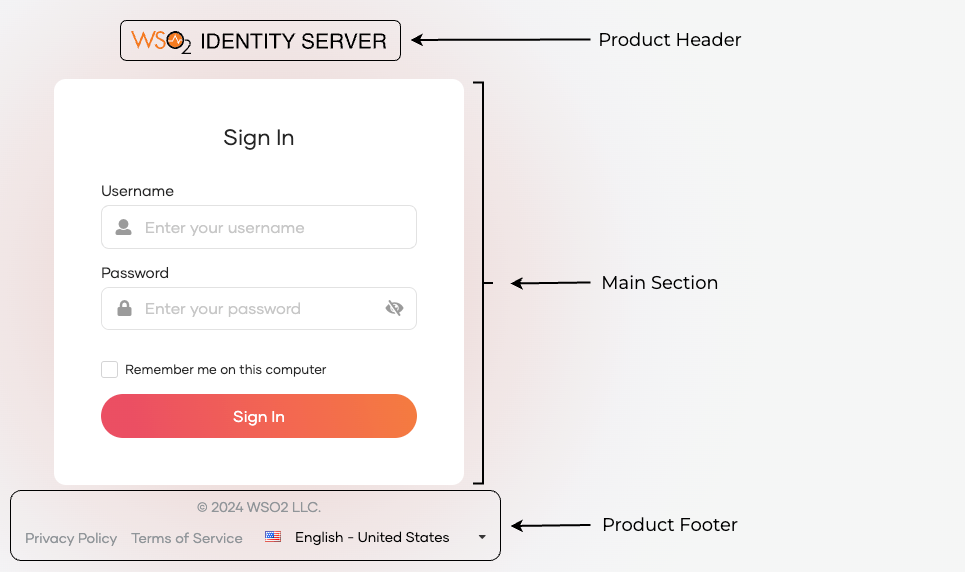
Layout syntaxes
This section explains the special syntax that you can use to create a custom layout.
-
Condition block
This is similar to an
IFblock. In the following example, the condition block will activate or deactivate according to the value of theisPolicyPagevariable.{{#isPolicyPage}} <main class="policy-page"> <div class="ui borderless top fixed app-header menu" id="app-header"> <div class="ui container"> <div class="header item product-logo"> {{{ProductHeader}}} </div> </div> </div> <div class="app-content policy-page-content" style="padding-top: 62px;"> <div class="ui container"> {{{MainSection}}} </div> </div> </main> {{{ProductFooter}}} {{/isPolicyPage}}- If the value of
isPolicyPageistrueor any non-empty string, then the content inside the block will be executed. - For all other values including
nullandundefined, the content of the block will not be executed.
- If the value of
-
Not Condition Block
This is similar to an
IFblock but with a NOT condition.{{^isPolicyPage}} <div class="page-wrapper layout-file {{#isErrorResponse}}error-page{{/isErrorResponse}} {{#isSuccessResponse}}success-page{{/isSuccessResponse}}"> <main class="center-segment"> <div class="ui container medium center aligned middle"> {{{ProductHeader}}} {{{MainSection}}} </div> {{{ProductFooter}}} </main> </div> {{/isPolicyPage}}- If the value of
isPolicyPageisfalse, an empty string,nullorundefined, the content inside the block will be executed. - For all other values, the content of the block will not be executed.
- If the value of
-
Component Syntax
This syntax will be used to indicate the position of the general component in the custom layout code. The component syntaxes will be replaced with actual content at runtime.
{{^isPolicyPage}} <div class="page-wrapper layout-file {{#isErrorResponse}}error-page{{/isErrorResponse}} {{#isSuccessResponse}}success-page{{/isSuccessResponse}}"> <main class="center-segment"> <div class="ui container medium center aligned middle"> {{{ProductHeader}}} {{{MainSection}}} </div> {{{ProductFooter}}} </main> </div> {{/isPolicyPage}} -
Data Syntax
This syntax can be used to add data to the layout code.
The value stored in the
BASE_URLvariable will be converted to a string and placed in the corresponding location at runtime. All data syntax values will be sanitized before adding to the layout code.Info
All these variables will be provided by
JSPpages. To get more data from JSP pages, add the data into thelayoutDatamap object found in each JSP page.
Add custom layouts
Follow the steps below to customize the layout for login, registration , username and password recovery, and single sign-on pages.
Tip
While authenticationendpoint is used to explain the steps below, the same steps can be carried on for accountrecoveryendpoint and x509certificateauthenticationendpoint.
Note
The <IS_HOME>/repository/deployment/server/webapps/ directory will be referred to as the webapps folder in the following steps.
Step 1: Create the extensions folder
Navigate to webapps/authenticationendpoint and create a new folder named extensions.
Step 2: Create the basic custom layout resources
To create the basic custom layout resources:
-
In the
authenticationendpointfolder, navigate to the createdextensionsfolder and create thelayouts,customandcarbon.superfolders as follows.Application-specific layouts
To add application-specific custom layouts, create a folder called
appsunder the organization folder (carbon.super). Within theappsfolder, create a folder for each application and name it with the UUID of the application.The structure will look as follows.
Follow the next steps of the guide, but apply them to the
UUID_OF_APPfolder instead ofcarbon.super. -
Navigate to the
webapps/authenticationendpoint/includes/layouts/centeredfolder, copy thebody.htmlfile, and add it to the createdcarbon.superfolder. -
Create the following files and the folder inside the
carbon.superfolder:styles.cssfilescript.jsfileassetsfolder
Step 3: Add a custom layout design
To add a custom layout to the login page:
-
Navigate to
webapps/authenticationendpoint/extensions/layouts/custom/carbon.super/and follow the instructions provided below:-
Copy the code snippet from the html file into the
body.htmlfile. -
Copy the code snippet from the css file and paste it into the
styles.cssfile.Note
If you are using the default html page provided by the product, please use the exact CSS class names when overriding the existing styles.
-
Copy the code snippet from the javascript file file into the
script.jsfile. -
Copy the illustration.svg file into the
assetsfolder.
Note
To update the header and the footer, use the Branding UI.
-
-
Download the relevant identity-apps source code from GitHub and extract it. This directory will be referred to as
IDENTITY_APPS_HOMEin the next step. -
Setup the development tools.
-
Follow the steps below to build the layouts.
-
Copy the
<IS_HOME>/repository/deployment/server/webapps/authenticationendpoint/extensions/layouts/customdirectory and place it into the<IDENTITY_APPS_HOME>/identity-apps-core/components/login-portal-layouts/layoutsdirectory. -
Navigate to
<IDENTITY_APPS_HOME>/identity-apps-core/components/login-portal-layoutsdirectory and build the source code usingmvn clean installcommand (Build should be succeeded for further steps). -
Copy the
<IDENTITY_APPS_HOME>/identity-apps-core/apps/authentication-portal/src/main/webapp/extensions/layouts/customfolder (Compiled version of the layout source code) and paste it into the<IS_HOME>/repository/deployment/server/webapps/authenticationendpoint/extensions/layoutsdirectory. If acustomfolder already exists in the target location, replace it with the newly copied folder.
-
-
To enable custom branding, go to Branding > Styles & Text > Design in the WSO2 Identity Server Console. Select Custom layout as the Login Layout and click Save & Publish to apply the branding configurations.
!!! tip If the server stops working after the changes are added, restart the server before verifying the changes.
- Refresh the browser and check out the added custom layout.
Best Practices
Use the following best practices when creating a custom layout:
-
Add a prefix for the new CSS classes so that the newly added classes will not conflict with existing classes.
-
In your development environment, be sure to add the
cache="false"flag as a parameter in the<layout:main>tag of all pages that require testing with the custom layout. With this flag in place, the layouts will compile at runtime eliminating the need to manually recompile layouts. Remember to remove this flag in the production environment.