Configure Email Provider
This document explains the steps to configure WSO2 Identity Server to send emails during multiple email-related customer identity and access management tasks such as email OTP, email notifications, and account recovery.
WSO2 Identity Server supports SMTP-based and HTTP-based email providers. To learn how to configure each email provider please see the relevant section.
Global Configurations of Email Provider
Follow the steps given below to enable the email sender globally for all tenants in WSO2 Identity Server.
Configure SMTP based email provider globally
- Shut down the server if it is running.
-
Add the following properties to the
deployment.tomlfile in the<IS_HOME>/repository/conffolder to configure the email provider.[output_adapter.email] from_address= "[email protected]" auth_type= "BASIC" username= "wso2iamtest" password= "Wso2@iam70" hostname= "smtp.gmail.com" port= 587 enable_start_tls= true enable_authentication= true signature = "ABC.com"Property Description from_addressThis is the mail address from where you want to send the notification. It can be any working mail address. auth_typeAuthentication type to use when sending the email. WSO2 Identity Server supports BASICandCLIENT_CREDENTIALauthentication types.
ForBASICyou need to configureusernameandpassword.
ForCLIENT_CREDENTIALyou need to configureclient_id,client_secret,token_endpointandscopes. Support for theCLIENT_CREDENTIALauthentication type is available for Microsoft 365 Exchange Online.usernameProvide the username of the SMTP account.
Username of the mail you have provided in from_address.passwordProvide the password of the SMTP account.
Password of the mail you have provided in from_address.client_idProvide the password of the SMTP account.
Password of the mail you have provided in from_address.hostThe SMTP server to connect to. portThis is the SMTP server port to connect to if the connect() method does not explicitly specify one. Defaults to 25. enable_start_tlsIf true, this enables using the STARTTLScommand (if enabled before issuing any login commands. Note that an appropriate trust store must be configured so that the client will trust the server's certificate. Defaults totrue.enable_authenticationIf true, attempt to authenticate the user using the AUTH command. Defaults to true.signatureSpecifies the display name for the "From" email address. For example, "ABC Company" results in "ABC Company" <[email protected]>.
If you don't set this property, the display name becomesnulland the system falls back to your SMTP server settings. For example, some servers use theusernameas the display name.
To send an email with no display name and show only the email address, set this value to an empty string:signature = ""Tip
For information about the SMTP, see the JavaMail SMTP documentation.
Info
- If you use a Gmail account as the from_address, you must create an App Password.
After you get an App Password from Google, update the
password. - If your password contains special characters (example:
<,>,&), you will run into errors when running the server. To avoid errors, update thepasswordparameter as follows:
- If you use a Gmail account as the from_address, you must create an App Password.
After you get an App Password from Google, update the
-
Save the configurations and start the server.
Configure HTTP based email provider globally
- Shut down the server if running.
-
Update the content of the
EmailPublisher.xmlfile in the<IS_HOME>/repository/deployment/server/eventpublishersfolder with below content and update the properties based on the provider you are using.<?xml version="1.0" encoding="UTF-8" standalone="no"?> <eventPublisher xmlns="http://wso2.org/carbon/eventpublisher" name="EmailPublisher" statistics="disable" trace="disable"> <from streamName="id_gov_notify_stream" version="1.0.0"/> <mapping customMapping="enable" type="json"> <inline>{"source": "{{subject}}", "content": "{{body}}", "footer": "{{footer}}", "to": "{{send-to}}"}</inline> </mapping> <to eventAdapterType="http"> <property name="http.headers">X-Version: 1, Header-1: Value-1</property> <property name="http.client.method">POST</property> <property name="http.url">https://example.com.email.provider </property> <property name="http.authType">CLIENT_CREDENTIAL</property> <property name="http.clientId">clientID</property> <property name="http.clientSecret">clientSecret</property> <property name="http.tokenEndpoint">https://example.com/oauth2/token</property> <property name="http.scopes">email_send_scope</property> </to> </eventPublisher>The
<mapping>element's<inline>tag defines the email payload template. Use the following placeholders, which are replaced with actual values at runtime:Placeholder Description {{subject}}Subject of the email. {{body}}Generated body content of the email. {{footer}}Footer of the email. {{send-to}}Recipient email address. The
<to eventAdapterType="http">element accepts the following properties:Property Description http.headersCustom static HTTP headers to include in every request sent to the email provider. Multiple headers should be comma-separated. (Optional) http.client.methodHTTP method to use when sending the request to the provider URL. Supported values: POST,PUT.http.urlThe URL of the HTTP-based email provider endpoint where the payload will be delivered. http.authTypeAuthentication type to use when calling the provider URL. Supported values:
BASIC— requireshttp.usernameandhttp.password.
CLIENT_CREDENTIAL— requireshttp.clientId,http.clientSecret,http.tokenEndpoint, andhttp.scopes.
BEARER— requireshttp.accessToken.
API_KEY— requireshttp.apiKeyHeaderandhttp.apiKeyValue.
NONE— no authentication.http.usernameUsername for BASICauthentication.http.passwordPassword for BASICauthentication.http.clientIdClient ID of the OAuth 2.0 application used for CLIENT_CREDENTIALauthentication.http.clientSecretClient secret of the OAuth 2.0 application used for CLIENT_CREDENTIALauthentication.http.tokenEndpointToken endpoint URL used to get an access token for CLIENT_CREDENTIALauthentication.http.scopesComma-separated list of OAuth 2.0 scopes to request when obtaining an access token for CLIENT_CREDENTIALauthentication.http.accessTokenStatic bearer token used for BEARERauthentication.http.apiKeyHeaderName of the HTTP header used to pass the API key for API_KEYauthentication.http.apiKeyValueValue of the API key used for API_KEYauthentication.
Tenant Specific Configurations of Email Provider
Info
- Super tenant email provider cannot be configured via the WSO2 Identity Server console. You need to configure the email provider in the
deployment.tomlfile as mentioned above.
Follow the steps given below to enable the email sender per tenant.
Configure SMTP based email provider per tenant
- On the WSO2 Identity Server Console, go to Notification Channels > Email Provider.
- Click the SMTP tab and provide the required details.
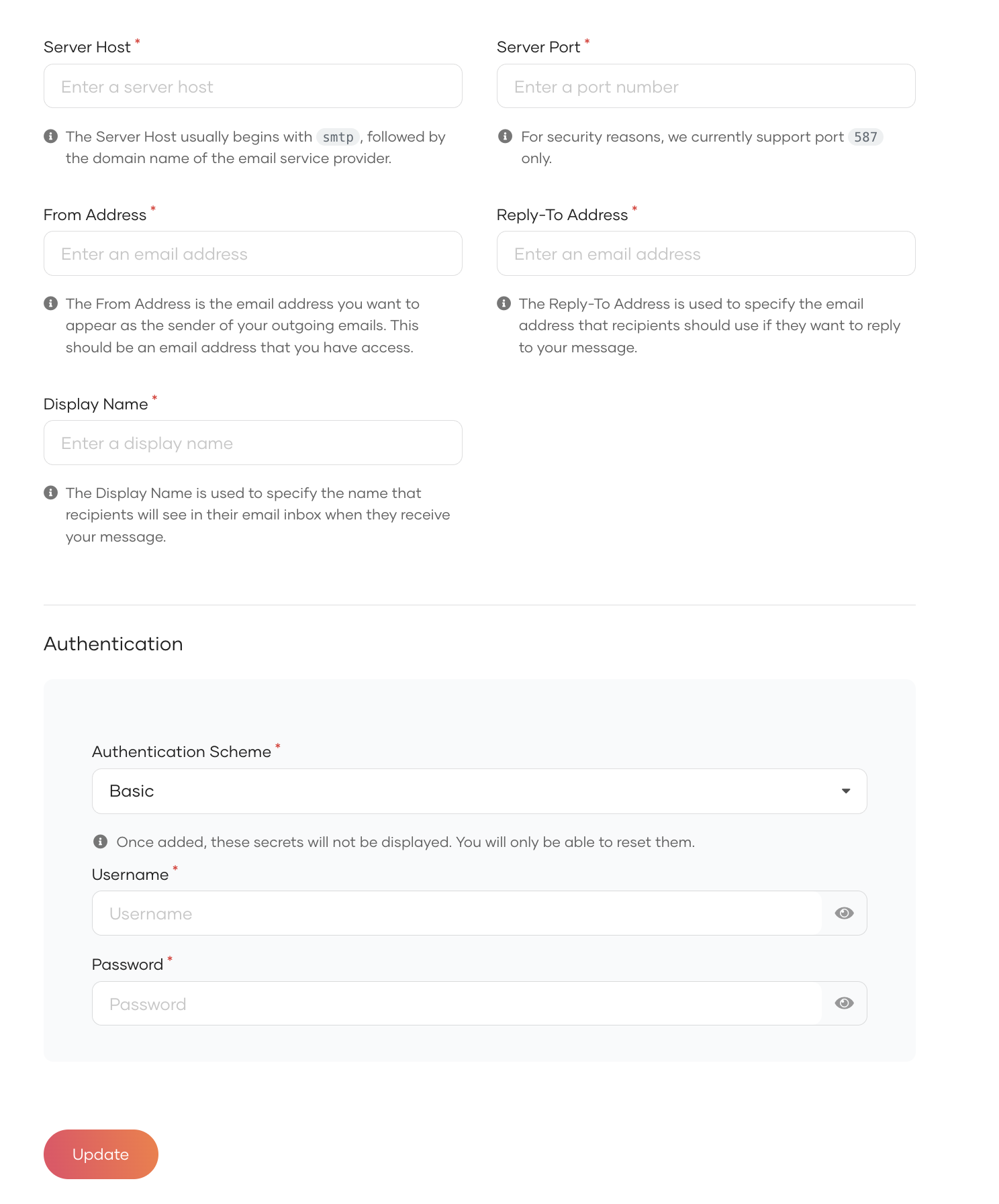
- Click Update.
- Since these configurations apply during the tenant loading process, configure tenant loading and unloading for your tenant.
Configure HTTP based email provider per tenant
- On the WSO2 Identity Server Console, go to Notification Channels > Email Provider.
- Click the HTTP tab and provide the required details.
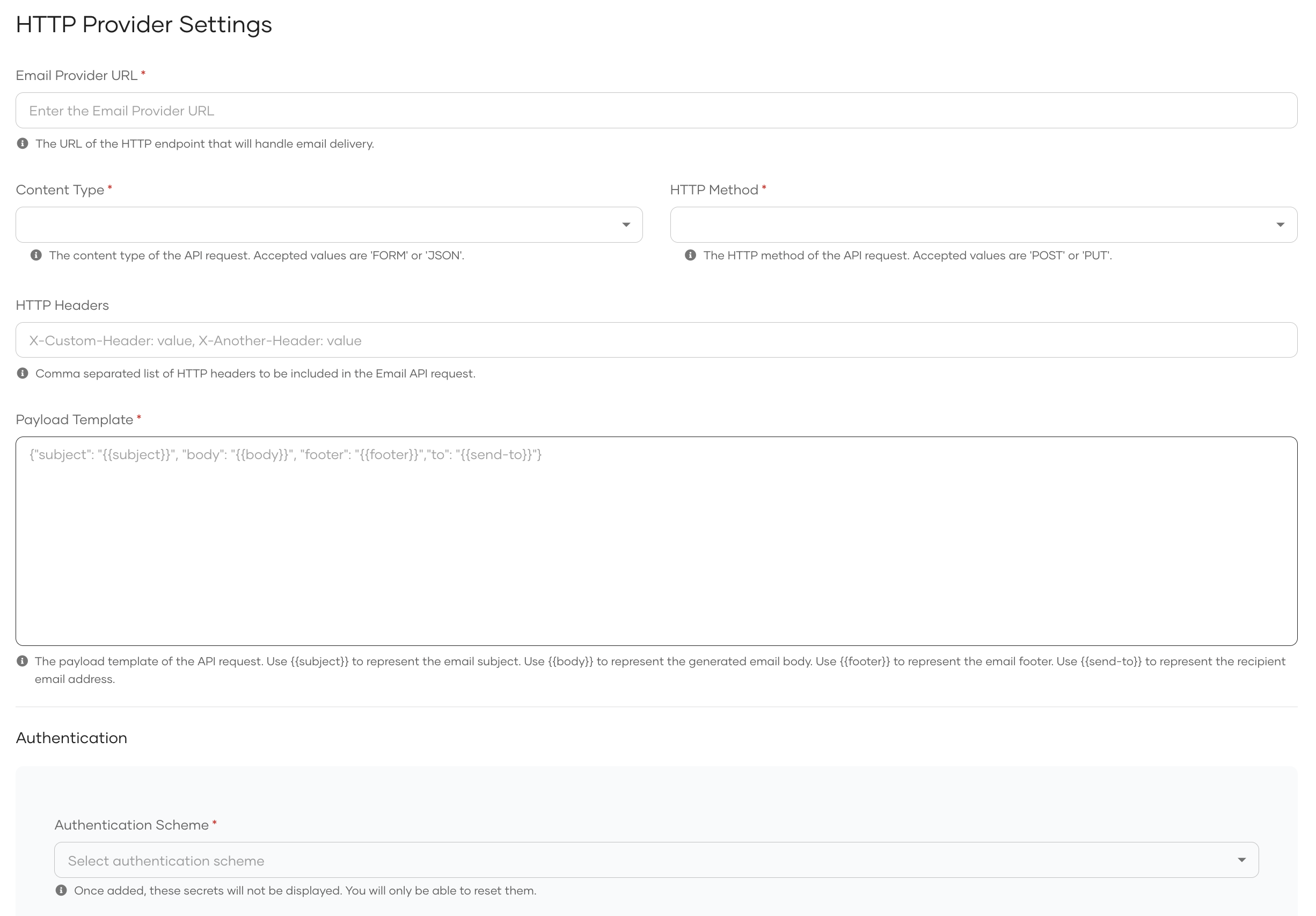
- Click Update.
Supported SMTP based email providers
Configuring Gmail as the email provider
If you use a Gmail account as the from_address, you must create an App Password.
After you get an App Password from Google, update the password.
If your password contains special characters (example: <, >, &), you will run into errors when running the server. To avoid errors, update the password parameter as follows:
Configuring Microsoft 365 Exchange Online as the email provider
Before you start
- You must have a Microsoft 365 account with an active subscription.
- Ensure your Microsoft 365 subscription is licensed to send emails through Exchange Online.
- You need at a minimum a paid subscription to Microsoft Business Basic plan to use the SMTP Auth for Exchange Online.
- Emails will be sent from WSO2 Identity Server to your SMTP provider. Your ports should be open and allow inbound connections from specific WSO2 Identity Server IP addresses.
Configure Microsoft 365
Application Configuration and Permissions
- Register a client application in Microsoft Entra ID if you currently do not have one.
- Navigate to your registered Application resource.
- Select Services > App registrations, and then select the application you will be using to send emails.
-
Configure the required application permissions by navigating to Manage > API permissions. Please refer Application permissions for SMTP
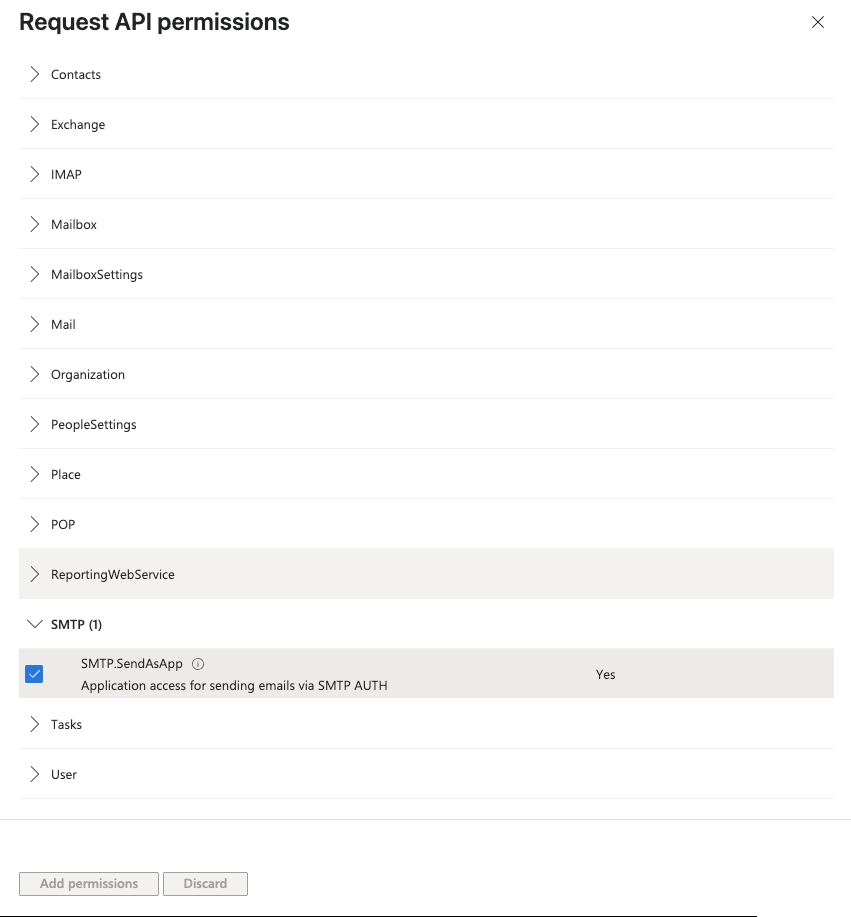
Register service principals in Exchange
- Please refer Register service principals in Exchange.
Enable SMTP AUTH for specific mailboxes
- Please refer Enable SMTP AUTH for specific mailboxes.
Retrieve required email provider configurations
- Navigate to the Application Overview of your Azure Active Directory Application and retrieve the Application (client) ID.
- Navigate to Manage > Certificates & secrets and collect the Value to create an application secret.
- Navigate to Overview > Endpoints and copy the OAuth 2.0 token endpoint (v2) URL.
Configure SMTP settings in WSO2 Identity Server
- Go to Notification Channels > Email Provider.
- Provide the From email address and other relevant details. Click on Client Credentials from the Authentication type dropdown.
- Provide the required details retrieved from the previous step.
NOTE: The scope required for Microsoft 365 Exchange Online is https://outlook.office365.com/.default and the token endpoint URL should be in the format of https://login.microsoftonline.com/{tenant_id}/oauth2/v2.0/token.

- Click Update to save the configurations.